
Additional campaign configuration
This section lists some other campaign-related settings you may need to configure depending on your campaign type.
Receiving campaign calls from incoming call queues
You can configure a campaign so that an incoming call queue is used also for the campaign. If you're using:
Queue Dialer: Agents with serve rights to the queue will receive incoming queue calls and additionally campaign calls from all active campaigns configured to use that queue
Campaign Dialer: Agent selects one campaign to serve in at a time from the list of active campaigns associated to a queue
The agents can receive campaign calls from an incoming call queue when they fulfill the following conditions:
| Dialer | Conditions |
|---|---|
Queue Dialer |
Campaign calls are not allocated to Simultaneous ring mode (SRM) devices or to external agents. |
Agents are serving in the incoming call queue defined for the campaign. |
|
Campaign Dialer |
Campaign calls are not allocated to Simultaneous ring mode (SRM) devices or to external agents. |
Agents are serving in the incoming call queue defined for the campaign. |
|
Agents have the Ready status and the Available presence profile. |
|
Using Communication Panel's Grouping filter, an agent joins only one campaign at a time. Selecting a campaign also automatically logs the agent in to the incoming call queue defined for the campaign. |
|
Agents get a blended experience when serving in a preview or progressive campaign, meaning that they can receive also conversations from other queues in-between campaign calls. |
|
Agents get a non-blended experience when serving in a predictive campaign, meaning that only campaign calls are received. Communication Panel will unjoin the agent from all other queues and maintain only the defined campaign queues' serving status for predictive mode. (Unjoining the campaign restores the previous queue assignments.) |
|
A predictive campaign requires the availability of the agent to connect directly with a customer. Therefore, the agent will be removed from serving in the predictive campaign if their status is set to Not ready or if a profile with queue groups is selected. |
Choose the campaign in .
In the Basics block, select either the QueueDialer or the Campaign Dialer as the dialer type.
Choose the dialing mode. All these modes are supported in a campaign that allows receiving calls from an incoming queue call.
Choose the incoming call queue for the Queue field.
Configuring predictive dialing mode setting
If your campaign's dialing mode is predictive, you can change the default values of settings specific to this mode.
-
Choose the campaign in .
-
In the Predictive settings block, enter the values for the settings you want to change.
Abandoned Ratio (%)
The maximum percentage of calls dropped due to no free agent being available. This applies to predictive mode campaigns where dialer calls a customer first, and the call is connected to an agent only after the customer has answered. This function is disabled if the predictive dialer is not selected.
The value range is from 0 to 20 and the default value is 1.0. Values with maximum of 3 decimals (for example 1.000) are allowed. The lower the value, the longer the agents have to wait for connected calls. Some countries have strict limitations for the abandon ratio value so you should check your local legislation.
- Increase Ratio (%)
With the default value (0%) the queue dialer will make one predictive call out for every free agent. Enter a percentage value for queue dialer to make more predictive calls out based on free agents plus increase against busy serving agents. During an active predictive campaign, the current dynamic ratio is increased, for example:
Calls made = Free agents + (Ratio % * Busy agents)
If the abandoned ratio is met then the dynamic scaling decreases. The current ratio can be seen from increase ratio.
-
Abandon Timeout (s)
With QueueDialer predictive campaigns, the value can be from 0 to 9999 seconds. A connected customer call without an agent will get the call result HANGUP if it disconnects before the time value is reached. Otherwise it will get the call result ABANDONED.
- Redialing interval for abandoned calls
To prevent the dialer from immediately redialing the same customer after a call receives an ABANDONED result, use this field to define a delay before the next call to that customer. The default value is 0 seconds.
Following Max. lines value
By default, preview calls in predictive campaigns ignore campaign and dialer max. lines value. To disable this, use the dialer parameter PreviewCallInPredictiveCampaignIgnoresMaxLines with value 0 in .
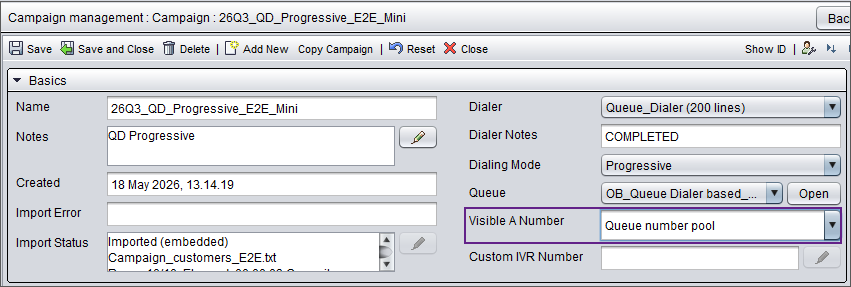
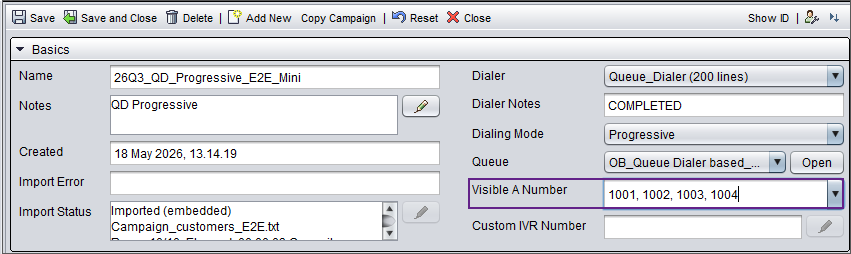
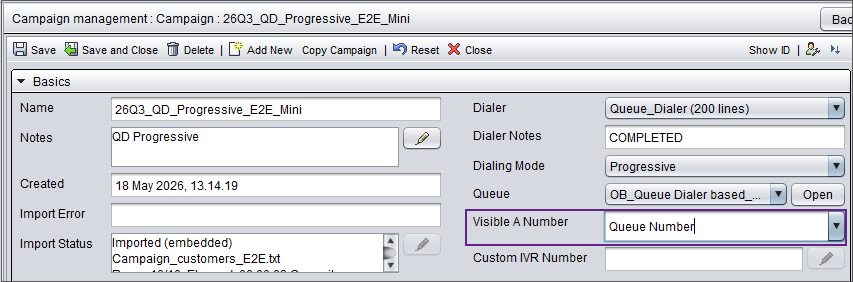
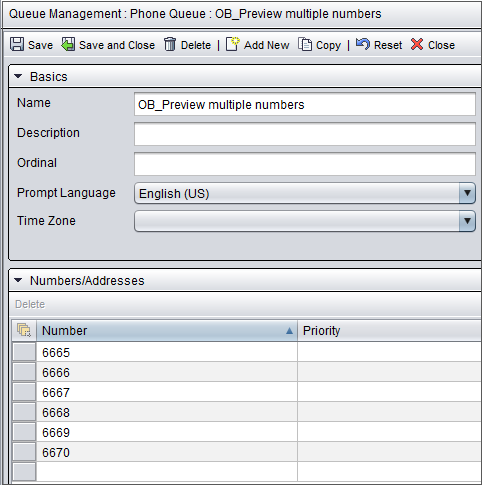
Using queue number pool
To use the number pool feature, where the system the system selects numbers from the campaign queue in a random order, configure it in one of the following ways:
Select Queue number pool, remove the text, and add a comma-separated list to the field.
or
Select Queue number and enter the numbers in Numbers/Addresses in the campaign queue settings.
When a call is redialed, the system may use the same or a different number, as it doesn't keep track of which number was previously used for each customer.
Ending campaign when quota achieved
You can define campaigns to end based on a quota being achieved and if needed, switch to a new campaign automatically when the quota is met.
-
Choose the campaign in .
-
In the Switching settings block, enter the quota value as:
- a number: The system calculates the number of calls as Handled + Max. Calls + Filtered
- a percentage: (Handled + Max. Calls + Filtered) * 100 / Total Number
- both a percentage and a number: The dialer will end the campaign based on the value that is met first.
-
Select the campaign you want the dialer to switch to when the quota has been met.