
Using video assistance
The agent can invite the customer to share video in a phone call by sending an SMS invitation from the Video assistance extension.
To start a video assistance session with a customer in a call:
Open the Video assistance extension.
Check the details of the invitation to be sent to the customer and edit if necessary:
From: the chat queue you want to send the invitation from
The phone number of the queue will be shown as the sender.
To: the customer's phone number
Make sure the phone number is correct before sending the invitation.
Invitation message: the message to send to the customer
You can specify the location of the link in the text by using the placeholder {LINK}. If you don't use the placeholder, the link will be added to the end of the message.
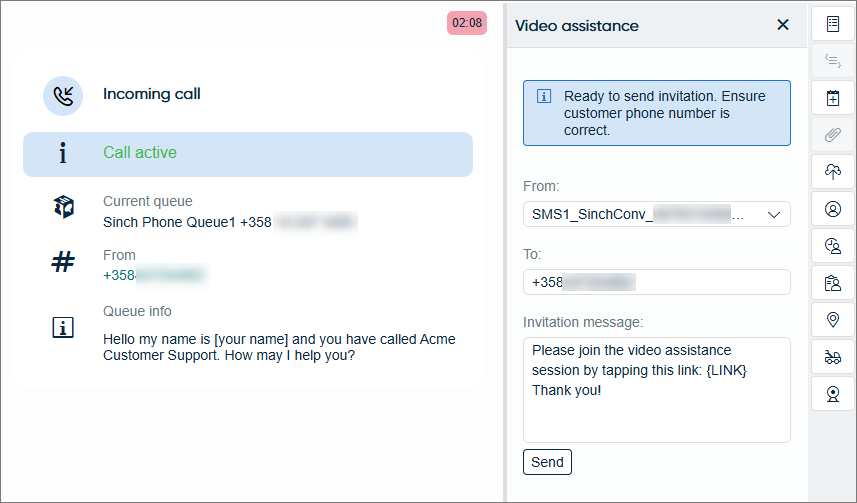
Click Send.
The customer receives the message and needs to tap the link to proceed. They'll be able to select the camera they want to use (back/front):
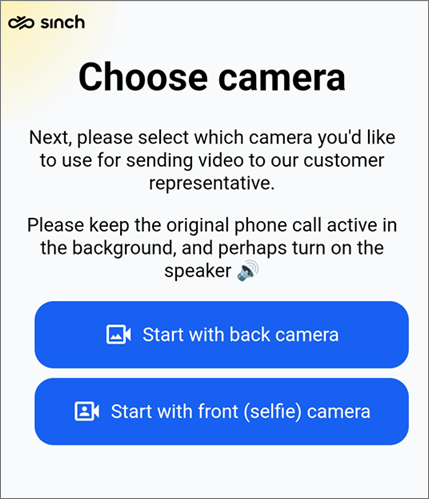 Tip:Suggest the customer to use the speaker as their audio device if they're not using a headset.
Once the customer starts sharing video, you'll see it in the extension. To open the video in full screen, click the Full screen button
 . To pop the video
out from the extension, click the Picture-in-picture
button
. To pop the video
out from the extension, click the Picture-in-picture
button  .
You can then close the extension area and continue viewing the video. These
buttons are only available if your environment allows using them. One or
both of them may be disabled, for example, when Communication Panel is embedded into another application.
.
You can then close the extension area and continue viewing the video. These
buttons are only available if your environment allows using them. One or
both of them may be disabled, for example, when Communication Panel is embedded into another application.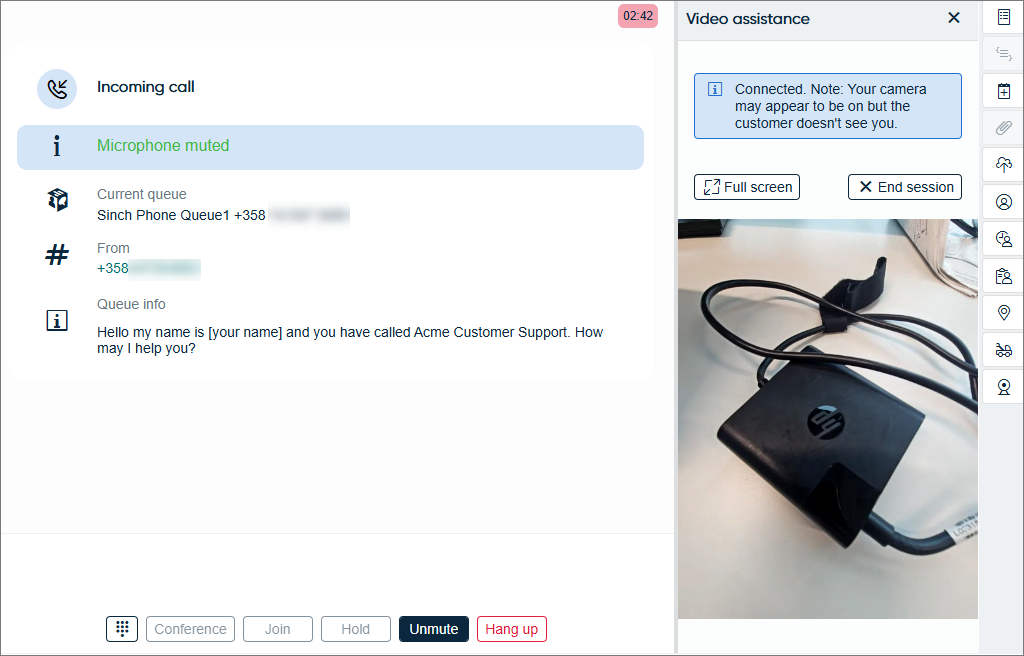
If you transfer the call or start a conference call, the video assistance ends.
When video assistance is no longer needed, click End session. This doesn't affect your phone call with the customer.
Troubleshooting
If you're not sure if the customer received the SMS invitation, open the SMS conversation from History to check if the message has been sent successfully.
If the extension isn't working, your browser may be missing the necessary notification permission:
-
Chrome:
-
Edge:
-
Firefox: