
Configuring video assistance
To set up video assistance, you'll need to configure it in Sinch Build and System Configurator.
You can add several video assistance extensions if needed, for example, for different invitation messages or different languages.
Prerequisites
-
You need access to Sinch Voice & Video. Note that this is an additional service billed separately from Sinch Contact Pro.
-
Your system must be configured for sending SMS messages. Sinch Conversation API and Sinch SMS are typical solutions for this. Read more in the System Configurator document. In addition, agents need to have Serve rights to the SMS queues.
-
You need to have an anonymous user configured in your system. For more information, see the System Configurator document.
-
Create a service request to Sinch for the necessary updates to your tenant.
Configure
-
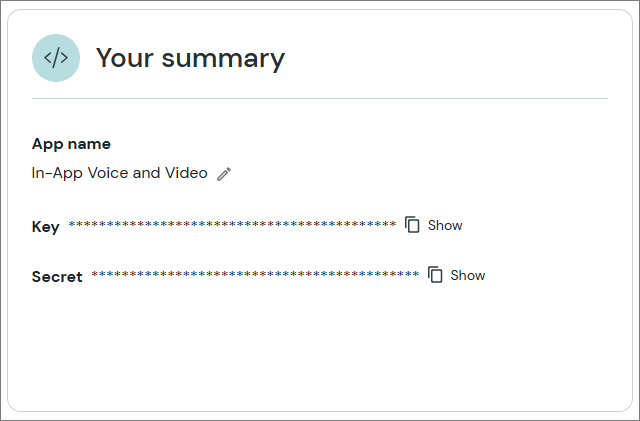
In Sinch Build at https://dashboard.sinch.com/login, create an app for Voice & Video.
If you have an existing app and don't need separate logs for different uses, you can use it instead of creating a new one.
-
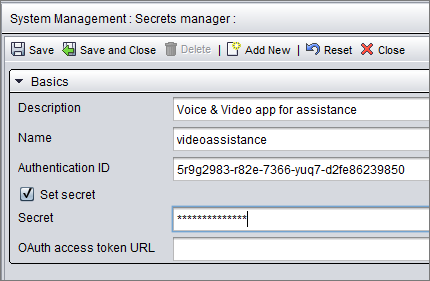
Open System Configurator and add a secret for your Sinch Build app to :
-
Authentication ID: key of your app
-
Secret: secret of your app
-
On the System Configurator main screen, choose .
Click Add New.
A popup window opens.
Select Video assistance.
An empty third-party extension configuration appears.
In the Basics block, enter the following information.
Field Description Name
Enter a name for the extension. The name is only shown in System Configurator.
Description
This field is optional but you can enter a free-form description for the extension.
Title
Enter a title for the extension. The title is shown in Communication Panel.
If you're configuring several video assistance extensions for the same queue(s), make sure the titles are different so the agent knows which one to open. You can also use different icons (see below) to identify the extensions.
Icon
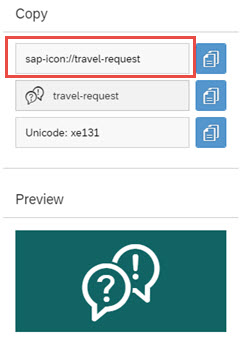
We suggest using icon sap-icon://web-cam. If you want to use a different icon:
-
Go to SAPUI5 Icons.
-
Search for the icon and then choose it.
-
Copy the name to the Icon field.
URL
Enter the URL to the customer-facing user interface (UI).
If you'd like to use the ready-made UI we've provided, add the URL https://ext-cc365.cc.sinch.com/video-assistance/en/index.html.
If you want to create your own customer-facing UI instead, see instructions in Github.
Ordinal
Define the listing order of the extensions. The range is from 1 - 100, 1 being at the top of the listed extensions in the Communication Panel extension area. If you enter 0 or leave the field empty, the extension will be shown at the top of the listed extensions in the CP extension area. If you use the same ordinal number for different extensions shown in the same views, CP will show them in alphabetical order.
Extension placement in Communication Panel:
To enable this extension, select the Conversations view field. To disable the extension, deselect the field.
-
In the Video assistance block, enter the following information.
Field Description Sinch Voice & Video app secret
The name of the secret of your Sinch Build app in Secrets manager
Invitation URL
URL of video assistance resource for inviting the customer
The URL is formed in the following way:- Europe: https://login-eu-c1.cc.sinch.com/[TENANT]/visitor/ecfs/RI/cmi/url/redirect/
- North America: https://login-na-w2.cc.sinch.com/[TENANT]/visitor/ecfs/RI/cmi/url/redirect/
- Australia: https://login-au-s2.cc.sinch.com/[TENANT]/visitor/ecfs/RI/cmi/url/redirect/
- Africa: https://login-af-s1.cc.sinch.com/[TENANT]/visitor/ecfs/RI/cmi/url/redirect/
Invitation message
Enter the message you want the agent to send to the customer when inviting them to share video. You can specify the location of the link in the text by using the placeholder {LINK}. If you don't use the placeholder, the link will be added to the end of the message.
In the Queues block, add the queues for which you want the extension to be used.
Note:You must also define queues for outgoing calls. The queue's number is used as the visible A number and shown to the customer in an outgoing call.
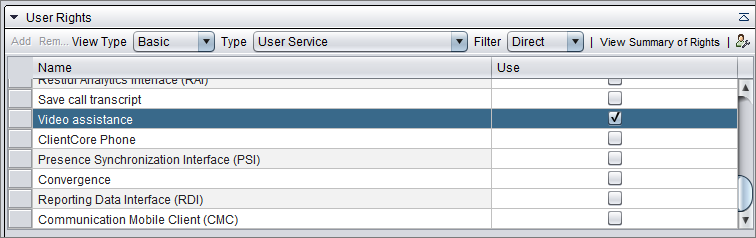
Add the following rights to agents for user groups, roles, or users:
View right to the Communication Panel extension: object type Communication Panel extensions

right to user service Video assistance
Serve right to the SMS queue used for sending the invitation

Save the extension.