
Calendars
In this procedure we show you how to create calendars you use with schedules.
Prerequisites
You need rights to create, modify, and delete calendars.
Create a calendar for weekdays
You want to create a calendar that is applicable for normal weekdays.
-
On the System Configurator main screen, choose .
-
Click Add new.
-
In the Basics block, enter the name for the calendar and choose the priority. Each calendar has a unique priority value and if several calendars are applied simultaneously, the calendar with the highest priority is used.
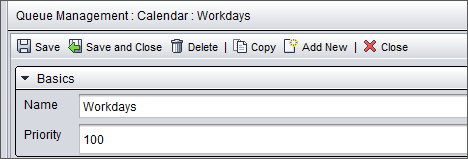
-
In the Weekdays block, select the days.
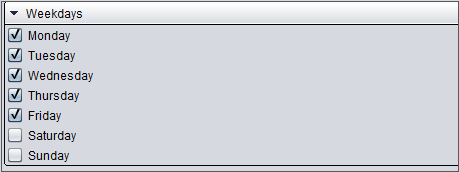
-
Save the calendar.
Now you have a basic calendar you can use when you define opening hours for your service.
Create a calendar for public holidays
You want to create a calendar that is applicable for a holiday which occurs on a weekday.
-
On the System Configurator main screen, choose .
-
Click Add new.
-
In the Basics block, enter the name for the calendar and choose a higher priority than you have for the calendar you use normally.
-
In the Yearly Calendar Days block, double-click an empty row in the Date column, and a calendar icon appears.
-
Click the icon and the calendar opens allowing you to choose the dates. In the Description field, enter the name of the public holiday
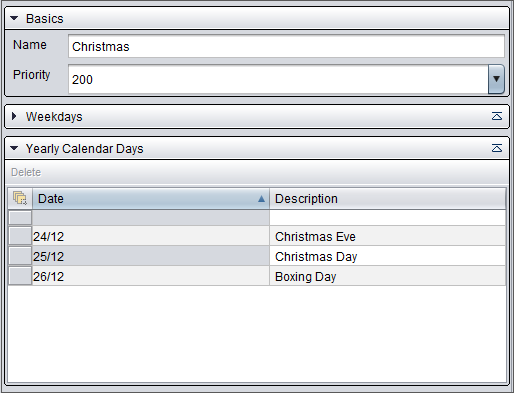
-
Save the calendar.
Now you have a Christmas time calendar that will be used during the days you've specified.
Create a calendar for summer holiday
You want to create a calendar that is applicable for a two-week period in August when your service is closed.
-
On the System Configurator main screen, choose .
-
Click Add new.
-
In the Basics block, enter the name for the calendar and choose a higher priority than you have for the calendar you use normally.
-
In the Date range block, double-click an empty row in the Start Date column, and a calendar icon appears.
-
Click the icon and choose the start date.
-
Do the same for the end date.
-
Add an explination for the dates in the Description field.
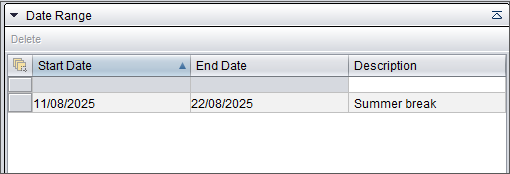
-
Save the calendar.
Now you have a calendar that will be used during the dates you've specified.
Modify or delete a calendar
-
On the System Configurator main screen, choose .
-
Search for the calendar you want to modify or delete.
The search result list appears.
-
Choose the calendar by double-clicking it.
-
Modify the calendar and save your changes, or choose Delete.