
Storing and deleting recordings
You have three options to control how long recordings are stored in the system.
Retention options
-
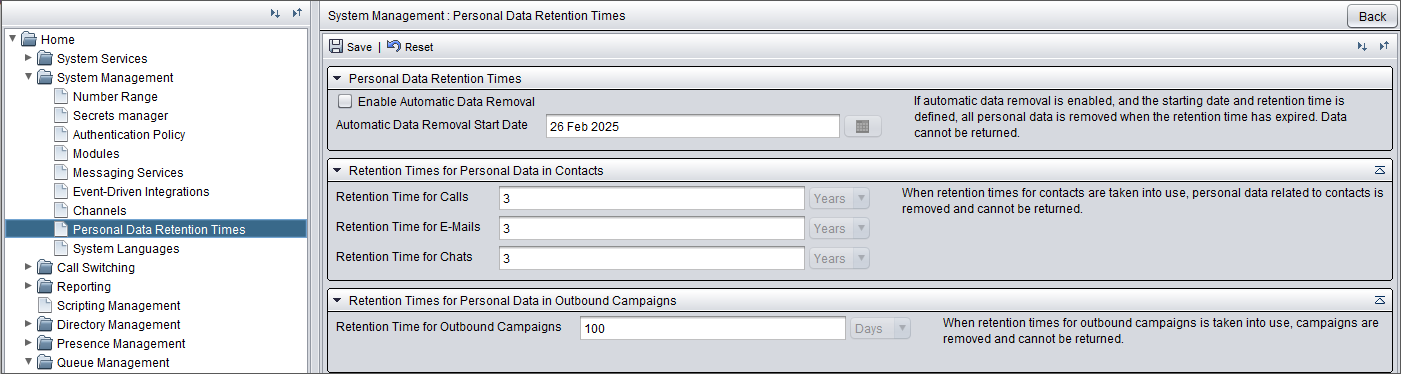
To set system-level retention times, use the settings Retention time for calls and Retention time for outhound campaigns in to define how long call data, including recordings, is kept in the system.
For cloud customers these settings are configured by Sinch.
-
To do the same as the system-level setting but per queue, use the queue setting Retention time. Make sure that Enable automatic data removal in is selected before starting to define the retention time for queues.

-
The third option is to use the Automatic file removal setting under Recording settings. Define how long the recordings and metadata (CTR) files are kept in the system. The setting removes only the files from the system, but doesn't anonymize the conversation data, such as the agent who handled the call.

You should also treat transcripts the same as recordings. The only way to control transcript retention is through the data retention settings.
Copying call recordings to AWS S3 bucket
To activate automatic copying of call recordings from Sinch to your own AWS S3 bucket, contact Sinch. In addition to call recordings, also contact trace records (CTR) will be automatically copied as soon as Sinch Contact Pro has stored them. Your AWS S3 bucket must be in the same AWS region where your Sinch Contact Pro is hosted.