Getting started
Sinch Contact Pro offers several call recording options.
Recordings can be initiated automatically (with or without user awareness) or manually by users. You can define recording at various levels: for individual users, queues, or campaigns.
Each level has unique behaviors that you should consider when planning recording setup. All call recordings are done on the server side and no recording data is stored in a user's workstation.
This document describes the recording feature in Sinch Contact Pro and instructs its configuration.
Data protection and privacy laws vary between countries. This includes informing parties that a call is being recorded and showing and hiding digits in phone numbers. Check all local laws and ensure your configuration complies with them.
Recording options
Call recording helps estimating how your customer service works and improving the customer experience. Below is a list of recording options and examples how to use them.
-
This is an optimal solution for recording incoming queue calls. This queue-specific setting forces all calls made into a queue to be recorded and allows you to define which users are permitted to listen to the recordings on a queue-by-queue basis. The recording is always on, and Communication Panel agents can't start, pause, or stop the recording.
Example:To understand which customer issues take the longest to resolve, call recording is enabled for the Support queue. By reviewing recordings of the longest-duration calls, you can identify recurring problem areas or knowledge gaps. Analysis of these conversations helps you to determine whether product features are unclear, customer documentation requires updates, or agents need additional training.
-
This is very similar to queue recording and enables you to record all calls made from a campaign.
Example:To compare the effectiveness of two campaigns promoting a new product, call recording is enabled for both campaigns. By reviewing recorded calls and correlating them with campaign performance results, you can identify differences in messaging and selling techniques. High-performing calls give you concrete evidence of what works and can be reused as best-practice examples for training.
-
This gives Communication Panel agents direct control over call recording through the user interface. Users with supervisor rights can record calls on behalf of the agent using the agent's recording function.
Example:Agents can start recording calls involving disputes, complaints, or cancellations. These recordings provide an accurate record of the conversation, allowing you to understand the situation without relying on agent recollection or written notes. If the issue escalates, the recording serves as objective evidence of what was discussed and agreed on.
You can also combine call recordings with call transcripts and AI analysis. This allows you to search, summarize, and analyze recording content to identify trends, common issues, and customer sentiment.
Rights to listen to recordings
-
When recording is made by queue
If queue recording is enabled, all calls made to the queue will be recorded.
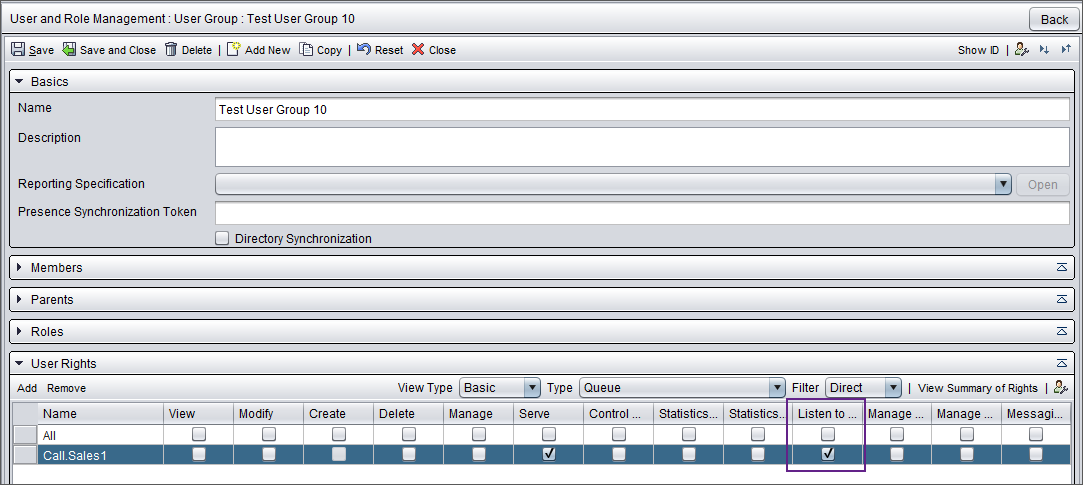
Access is granted through the Listen to recording right. In practice, a user who has this right can listen to all recordings made in the queue, including calls they didn't personally handle.
We recommend assigning the listening right to a user group or user role rather than to individual users.
-
When recording is made in a campaign
The behavior is the same as for queue recordings. Users who have the Listen to recording right for the campaign queue can listen to all recordings made through this queue.
-
When recording is made by a user
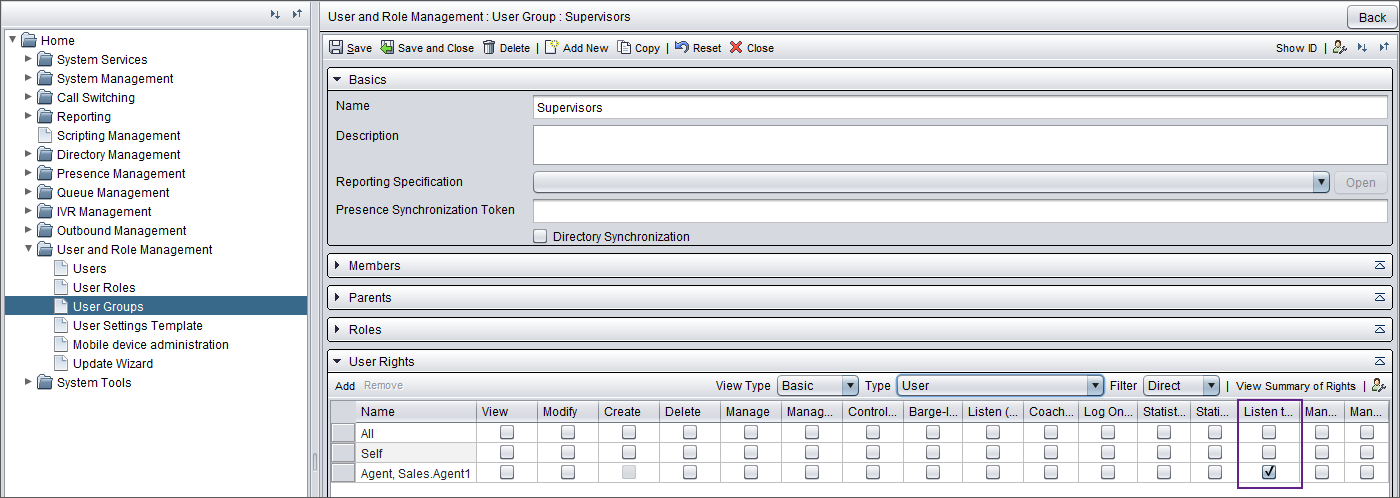
With user recordings, you can limit the access so that a user is allowed to listen only to their own recordings and not those made by others. It's possible to grant additional users, such as supervisors, the Listen to recording right to allow them to listen to recordings made by other users. We recommend assigning this right to a user group or user role rather than to individual users.