
Queue recording
Prerequisites
-
The queue is created and settings configured.
-
You have rights to modify the queue.
-
The system-level setting in is Specified for user, queue or campaign.
Configuration
-
In System Configurator, go to .
-
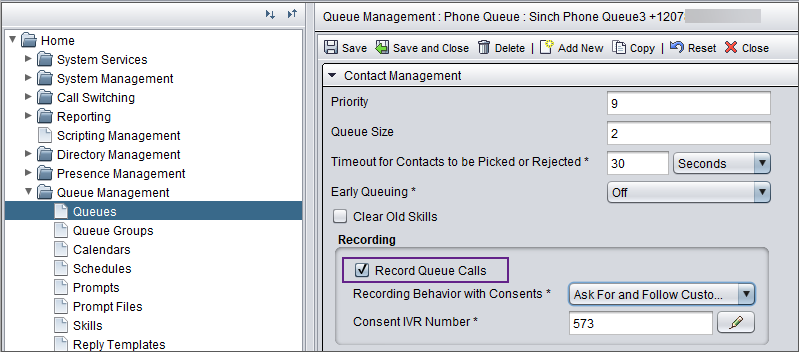
In the Contact management block, select the option Record queue calls.
 Note:
Note:-
Once recording starts in any queue, it continues for the entire duration of the call, even if the call is transferred to queues where recording isn't enabled. The recording stops only when the call is disconnected.
-
The recording continues also when the call is transferred to an external number unless Stop queue recording when call transferred to external number is enabled in .
The table below shows three queue recording scenarios and their outcome.
Scenario Outcome Queue A is configured to record calls, and the call is transferred to Queue B.
The call is recorded from the moment it is answered in Queue A until the call is disconnected, including the time spent in Queue B.
Queue A isn't configured to record calls, and the call is transferred to Queue B, which is configured to record.
The call is recorded from the moment it is answered in Queue B until the call is disconnected in Queue B.
Queue A isn't configured to record calls, Queue B is configured to record, and the call is transferred to Queue C, which isn't configured to record.
The call is recorded from the moment it is answered in Queue B until the call is disconnected in Queue C.
-
-
If you are using consents in your system, see Consent IVR for configuration.