User recording
Define how calls are recorded in Communication Panel.
Prerequisites
-
User is created and settings configured.
-
You have rights to modify the user and user settings templates.
-
The system-level setting in is Specified for user, queue or campaign.
Configuration
-
In System Configurator, go to and choose the user whose recording settings you want to define.
-
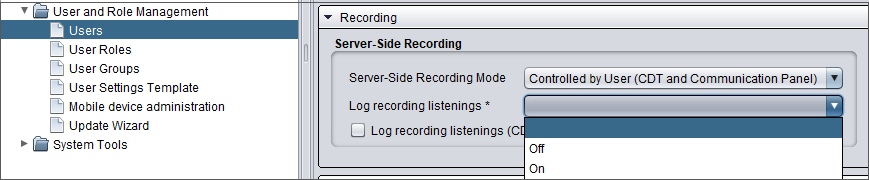
Click the Recording block and choose the recording mode:
None
The recording option is not available in Communication Panel.
Controlled by User
The recording option is available for users, and they can activate the recording themselves.
This doesn't apply to calls answered on a device in simultaneous ring mode (SRM).
Controlled by User and Enabled by Default
The recording option is available for users, and it is activated. The users can deactivate the recording themselves.
This doesn't apply to calls answered on a device in simultaneous ring mode (SRM).
Forced (All Calls Except Forwarded Calls)
All calls except forwarded calls are recorded, and users cannot deactivate the recording. They are aware of calls being recorded.
Forced and Hidden (All Calls Except Forwarded Calls)
All calls except forwarded calls are recorded, and users cannot deactivate the recording. They are not aware of calls being recorded.
Forced (All Calls Including Forwarded Calls)
All calls are recorded, and users cannot deactivate the recording. They are aware of calls being recorded.
Forced and Hidden (All Calls Including Forwarded Calls)
All calls are recorded, and users can't deactivate the recording. They are not aware of calls being recorded.
-
To require users to give a reason before listening to a recording, select Log recording listenings.
For a simplified user administration, we recommend applying this setting via a template in .
-
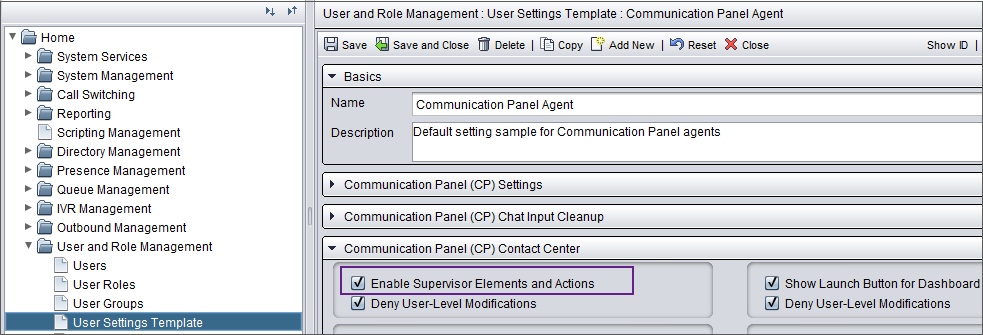
To give supervisors rights to use Communication Panel agents' recording function, select the option Enable supervisor elements and actions in .