
Using recording
Communication Panel users can record calls and listen to them when defined in SC.
Record a call
You can start or pause recording of an active phone call if the Recording button is active. Administrators set up the recording function in System Configurator. They can also configure a setting so that all parties on the call hear a beep every 14 seconds when the call is being recorded. Recording can start automatically for all calls, or only in certain occasions. It can also be set to always-on, in which case the Recording button is disabled.
Where required, the customer must consent before the call can be recorded.
To start the recording, choose the Start Recording button.
If the customer consent is missing, recording cannot be started but a confirmation question is asked. If there is a need to record without the consent, answer the question accordingly.
To pause the recording, choose the Pause Recording button.
The recording is stopped when the call is disconnected.
The recordings can be listened to in the Conversation Details view.
Listen to a recording
To listen to a recording, open it by clicking the arrow at the end of the line
and click the Play button  .
.
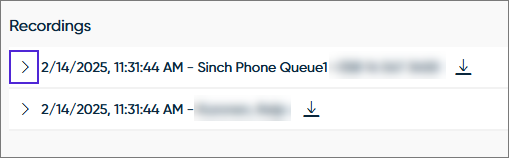
Depending on the system configuration, you may be prompted to enter a reason for listening. Each listening session of a recording is logged and displayed in the Recording Activity Log. The Call Recording player is then shown and the recording starts playing automatically.
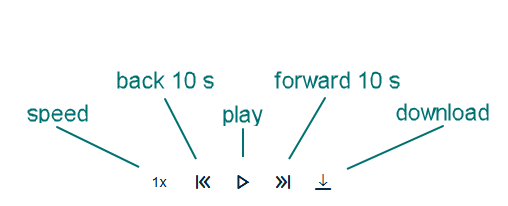
You can move the cursor forward and backward, or you can increase the speed the recording is played with. To increase the speed, click the button 1x, it changes to 2x, 3x and 4x with each click. Then the next click returns it to 1x.
Downloading recordings
To download a recording to local machine, click the Download button.
Depending on the system configuration, you may be prompted to enter a reason for download. Each download of a recording is logged and displayed in the Recording Activity Log. The call recording is then downloaded to the browser's defined download file location.
Recordings in Dashboard
When a call has a recording, the Conversations view shows the recording icon  .
.

To listen to the recording, open Communication Panel.
Clicking the row opens the Conversation details view and shows the owner and location of the recording, and the file name.

If the owner corresponds to a user’s name, the recording was created by that user. Likewise, if the owner corresponds to a queue, the recording was triggered by a queue recording.
The recording file name follows this format:
[file location]/yyyy_mm/dd_hh_mm_ss_app_callid
where app can be one of the following:
SSR_[number] indicates a recording created by a user, where number is the user’s extension.
SSR_Cr indicates a recording created by a queue.
SSR stands for server-side recording.