
Chats
To set up the preferred or required agent feature for chats, choose one of the following options:
-
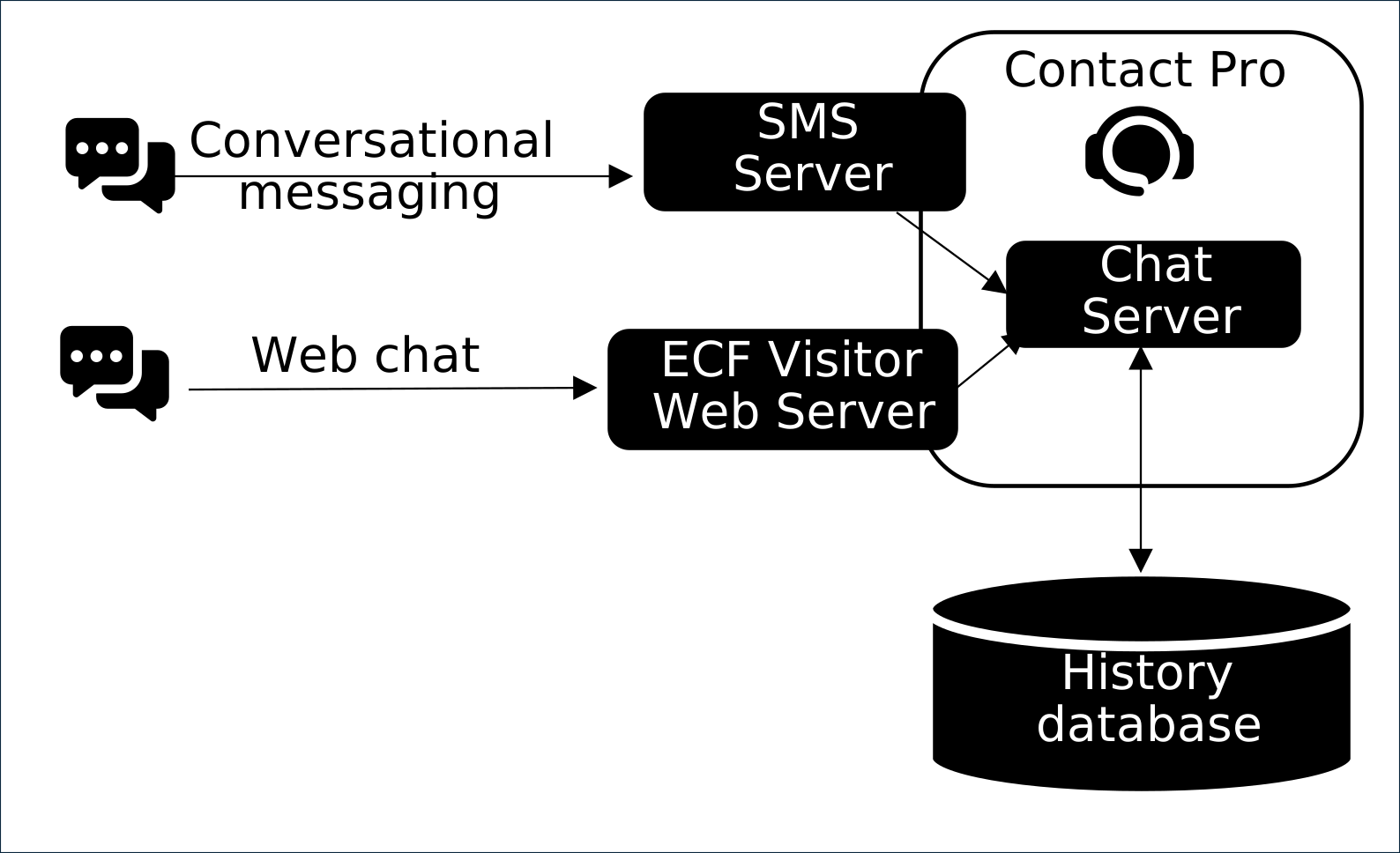
Built-in
-
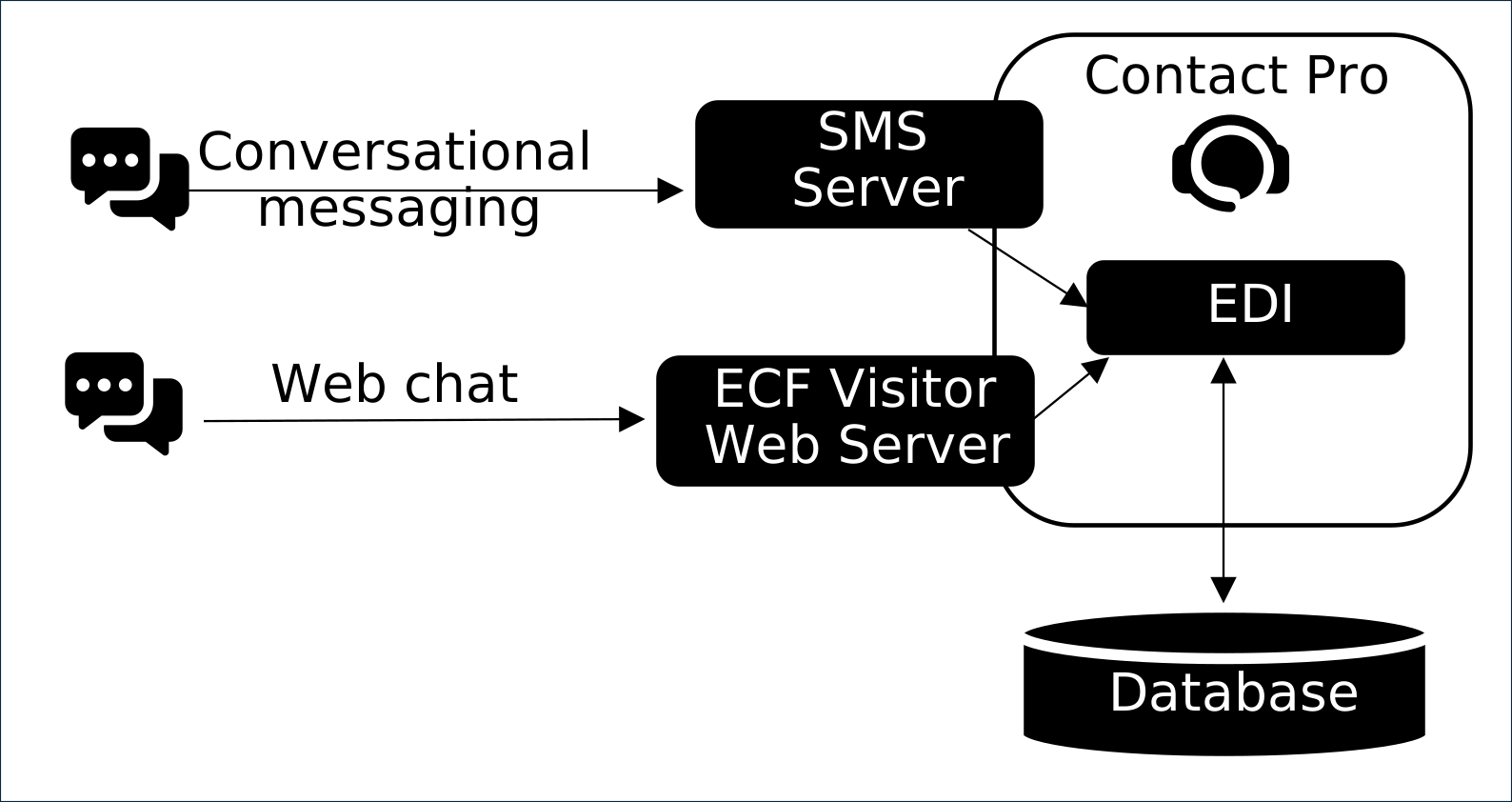
EDI
-
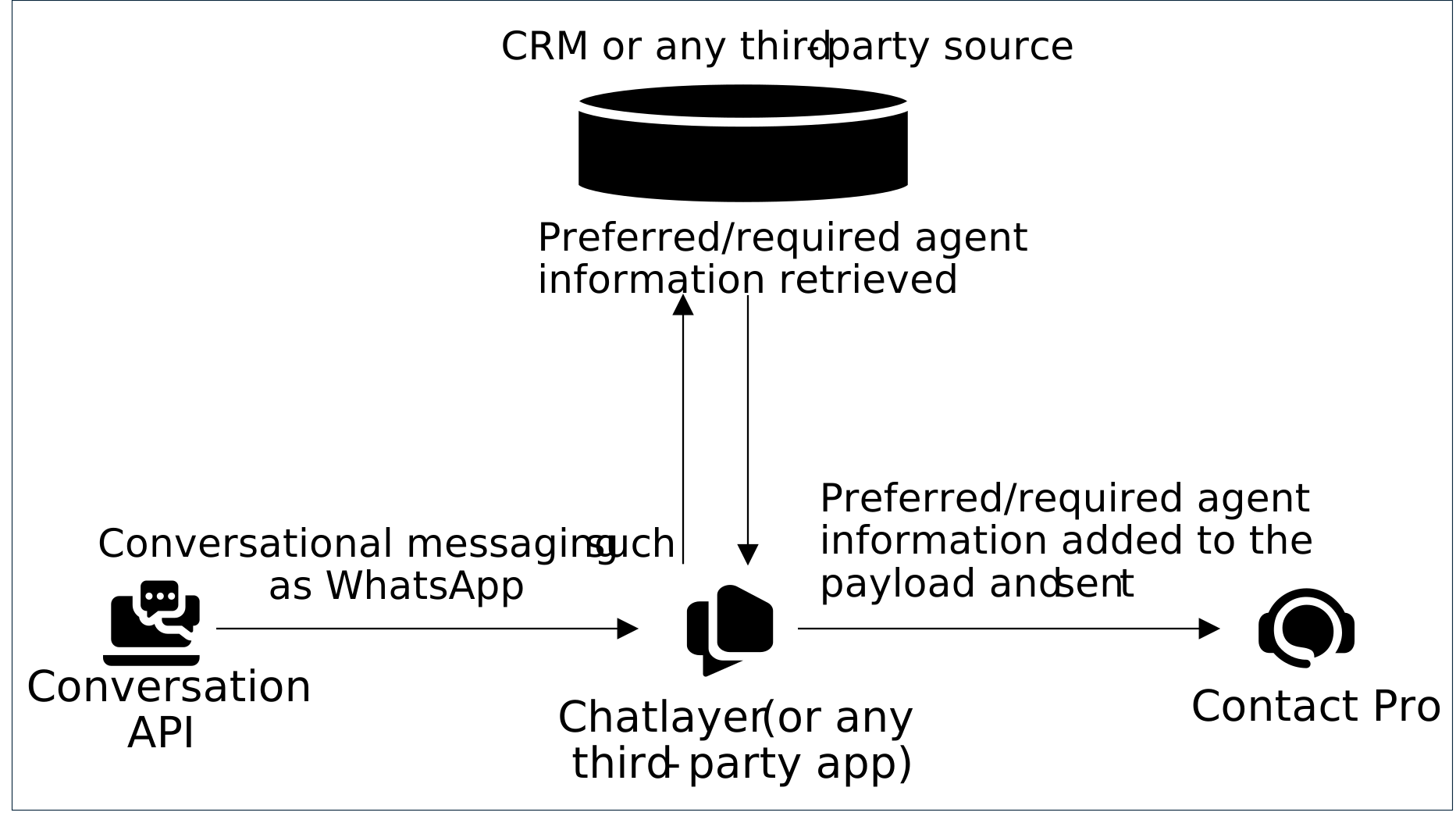
Conversation API with payload
Common scenarios
The following scenarios show how the preferred agent feature allocates conversations in different situations.
Setup
Agent A and Agent B are free and serving in Queue A. The preferred agent feature is enabled for the queue or the requirement comes from EDI or via payload.
Conversation allocation
-
A conversation enters Queue A, with Agent B set as the preferred agent.
-
The conversation is offered to Agent B even though Agent A has been idle for longer time.
-
If Agent B doesn't accept the conversation within the configured queue/channel timeout (the setting Timeout for contacts to be picked or rejected), it's then allocated to the next best available agent.
-
No preferred agent information is shown in the Picklist or History.
Setup
Agent A is free and serving in Queue A and Agent B isn't serving the the queue. The preferred agent feature is enabled for the queue or the requirement comes from EDI or via payload
Conversation allocation
-
A conversation enters Queue A, with the unavailable Agent B set as the preferred agent.
-
Because Agent B isn't available, the preferred agent requirement is ignored.
-
The conversation uses the standard routing process.
-
No preferred agent information is shown in the Picklist or History.
Setup
Agent A is serving in Queue A and ready, Agent B is serving in Queue A and not ready.
Conversation allocation
-
A conversation enters Queue A, with Agent B set as the preferred agent.
-
The conversation is offered to Agent B for the defined maximum waiting time.
-
The Picklist indicates that the conversation is reserved for Agent B and shows the duration of the reservation.
Setup
Both Agent A and Agent B are ready and serving in Queue A but Agent B's chat capacity is full.
Conversation allocation
-
A conversation enters Queue A, with Agent B set as the preferred agent.
-
The conversation is offered to Agent B for the defined maximum waiting time.
-
The Picklist indicates that the conversation is reserved for Agent B and shows the duration of the reservation.
Example: Using preferred agent waiting time
You can control how long a conversation is exclusively offered to a preferred agent before being made available to other qualified agents in the queue.
Setup
| Item | Configuration |
|---|---|
|
System Configurator (SC) setting |
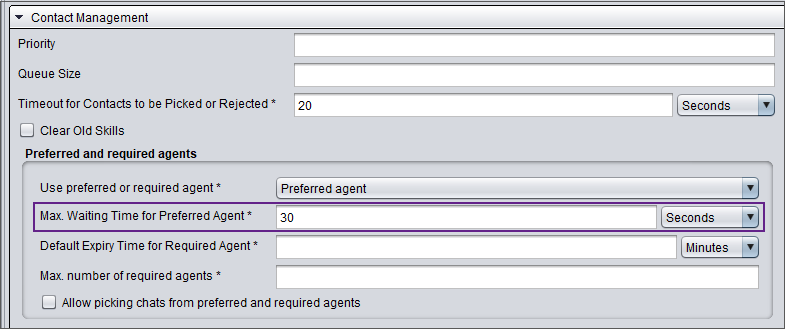
Max. waiting time for preferred agent set to 30 seconds either in
|
|
Agent A |
Preferred agent for the incoming conversation |
|
Agent B |
A standard agent serving the same queue, who is currently available. |
Conversation allocation
-
A new conversation arrives for which Agent A is the preferred agent.
-
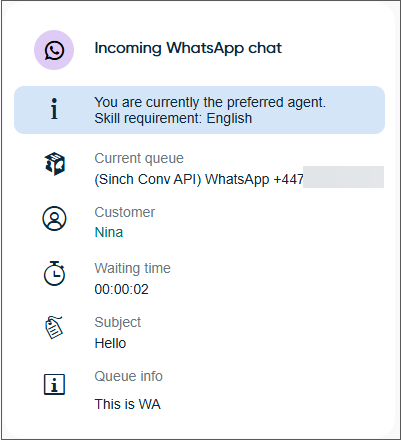
The system immediately allocates the conversation exclusively to Agent A if available as explained in Max. Waiting Time for Preferred Agent. In the Communication Panel, Agent A is informed that the conversation was allocated to them because they are the preferred agent. The 30-second timer begins.
-
30 seconds elapses and Agent A has not accepted the conversation.
-
The exclusive reservation for Agent A ends. The conversation is removed from Agent A's view and the system now treats the conversation like a standard conversation and begins searching for the next best available agent.
-
Agent B is ready and has capacity, so the system allocates the conversation to Agent B.
-
At this point, one of two things will happen:
-
Agent B accepts: The conversation is connected to Agent B.
-
Agent B rejects it: The conversation remains with Agent A and the system tries to offer the conversation to the next suitable agent in the queue.
-
Example: How preferred agent affects chat capacity
When a conversation has a preferred agent, the system will prioritize assigning the conversation to that agent, even if it means temporarily exceeding their defined chat capacity.
Setup
| Item | Configuration |
|---|---|
|
System Configurator (SC) setting |
Maximum number of chat sessions set to 2 in
|
|
Agent A |
Preferred agent for the incoming conversation |

Conversation allocation
-
Agent A has two ongoing conversations so their chat capacity is full.
-
A new conversation arrives for which Agent A is the preferred agent.
-
The conversation is allocated to Agent A because the preferred agent requirement overrides the concurrent chat session limitation.