Get started
Dashboard is an application that primarly presents statistics that concentrate on both current-day and historical activities within the contact center.
It uses built-in filtering and offers column sorting and scalable columns.
Supported browsers
If your workstation's operating system is Windows, you can use the application with Chrome, Edge, Opera, and Firefox. For macOS, only Chrome is supported. We recommend using the latest version of the browser.
Log in
-
Go to the given URL.
-
Enter the username and password and click Log in.
Menu bar
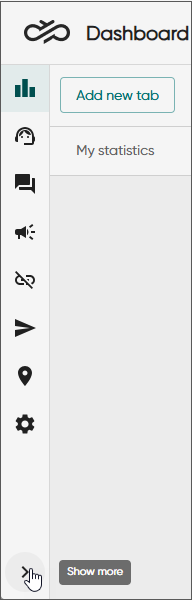
The menu bar is used to navigate the different Dashboard views. It can be collapsed or expanded.
Utility options

The utility options provided are:
-
 wallboard view
 -
 Communication Panel link
 -
 help link
 -
 dark mode and
  light mode
 -
 log out
Table options
To personalize the view, click Columns and select the columns you want to see. You can also search for the columns by starting to type the column name. It shows all columns that match your criterion:
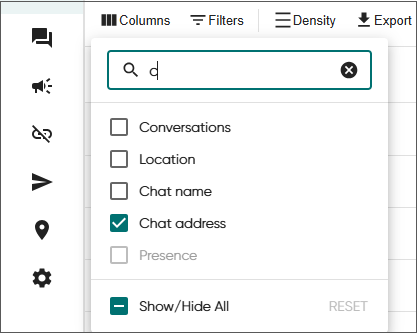
To see fewer columns, deselect the ones you don't need. Some columns are available only as filters and therefore not visible in column selection.
-
change the order of the columns by using drag-and-drop
-
change row density
Standard is the default.
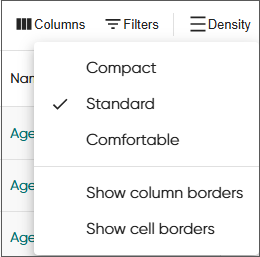
Switching between views will revert the density to standard.
-
add column and cell borders
Switching between views will remove the borders.
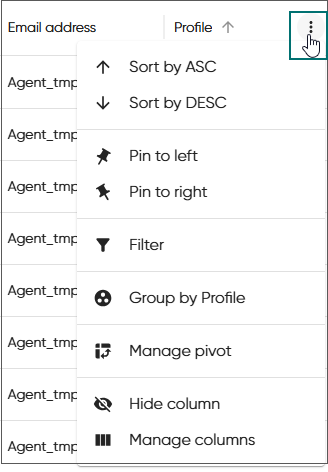
Clicking the menu icon shows you more options, and you can:
-
sort the order of information within a column
-
pin and unpin columns
-
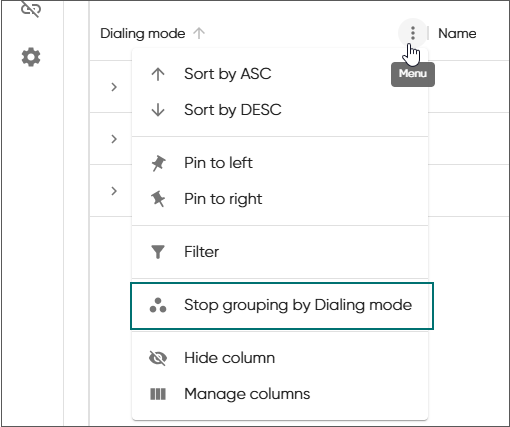
group items, for example, campaigns based on dialing mode
To remove grouping, click the menu icon and choose stop grouping.
-
hide all columns if, for example, you need to share your screen and some information must remain private
To clear your set preferences, see Settings.
Filter
To sort through information shown in the table, use Filters:
-
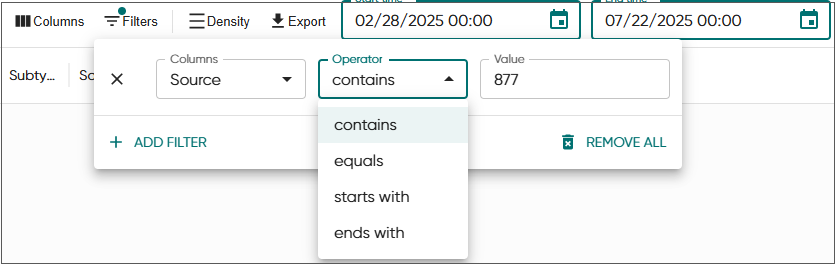
Choose the column you want to use as a filter and its operator.
The selection of operators depends on the view and the selected filter.
-
Define the value(s) either by selecting from the list when available or by starting to type it.
Depending on the selected operator, it either performs an exact match (for example equals) or supports full or partial matches (for example contains).
-
Add another filter if needed.
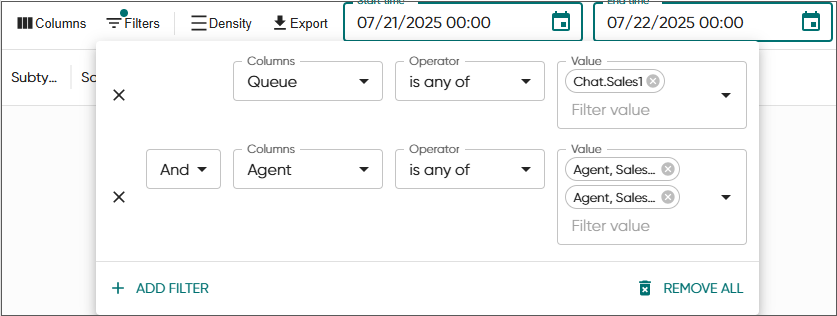 Note:By default, filters use the AND condition meaning all criteria must be met. The following filters use the OR condition instead, meaning the results will include items that meet any of the selected criteria:
- Agent, User group, and Reporting group
- Queue and Queue group
-
To close the filter options, click Close.
Close dropdown lists
To close any of the dropdown lists, click outside of the dropdown. For the Filters dropdown you can also use the Close button.
Operators
The available operators depend on the view you're in and the column you're using for filtering.
| Operator | Description |
|---|---|
| is any of |
This operator searches the selected column for entries that match any one item from a list of specified values you entered and returns matching results. Example:
Agents
view: Availability is any of away, logged outreturns agents who are either away or logged out. |
| contains |
This operator searches the selected column for entries that include the value you entered and returns matching results. Example:
Conversations view: Destination contains @company.comreturns all addresses that contain @company.com. |
| equals |
This operator searches the selected column for entries that match the value you entered and returns matching results. Example:
Agents
view: Chat name equals Sales agent 1returns agents whose chat name is Sales agent 1. |
| starts with |
This operator searches the selected column for entries that start with the value you entered and returns matching results. Example:
Agents
view: Chat name starts with Sales agentreturns agents whose chat name starts with Sales agent. |
| ends with |
This operator searches the selected column for entries that end with the value you entered and returns matching results. Example:
Conversations view: Destination ends with @company.comreturns all addresses that end with @company.com. |
| = |
This operator searches the selected column for entries that are equal to the value you entered and returns matching results. Example:
Statistics view and Serving status card: Queuing = 5returns queues that have 5 queuing conversations. |
| != |
This operator searches the selected column for entries that are not equal to the value you entered and returns matching results. Example:
Statistics view and Serving status card: Queuing != 5returns all queues that don't have 5 queuing conversations. |
| > |
This operator searches the selected column for entries that are greater than the value you entered and returns matching results. Example:
Statistics view and Serving status card: Agents > 3returns all queues that have more than three agents serving. |
| >= |
This operator searches the selected column for entries that are greater than or equal to with the value you entered and returns matching results. Example:
Statistics view and Serving status card: Agents >= 3returns all queues that have three or more agents serving. |
| < |
This operator searches the selected column for entries that are less than the value you entered and returns matching results. Example:
Statistics view and Serving status card: Agents < 3returns all queues that have less than three agents serving. |
| <= |
This operator searches the selected column for entries that are less than or equal to the value you entered and returns matching results. Example:
Statistics view and Serving status card: Agents <= 3returns all queues that have three or less agents serving. |
Export information
To copy the information you currently have in the table, use the Export option. You can export it as Excel or comma-separated values (CSV).
Rows per page and pagination
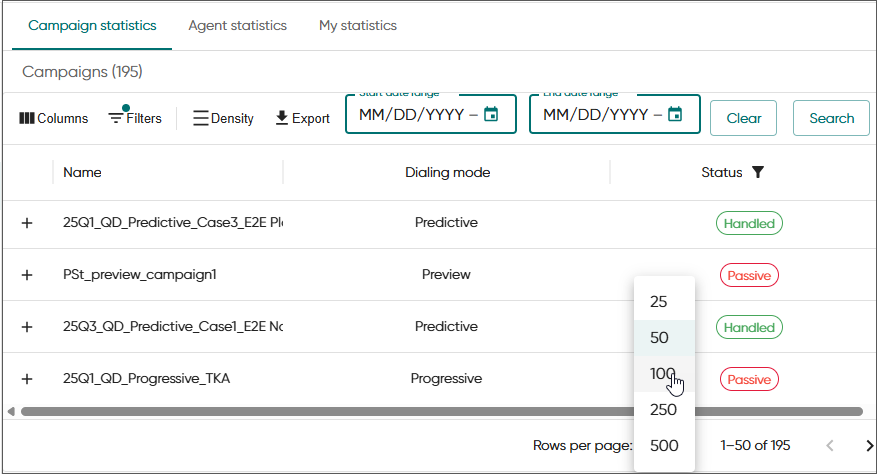
You can define how many rows are shown per page. If the number of rows exceed the defned per page value, use the arrow to go to the next page.