
System Configurator logs
This section instructs how to adjust SC log level and how to collect the log files.
Adjust the log level
If requested by the support, change the log level before collecting the logs.
-
Open SC and go to .
-
Change the log level to the value requested by support.
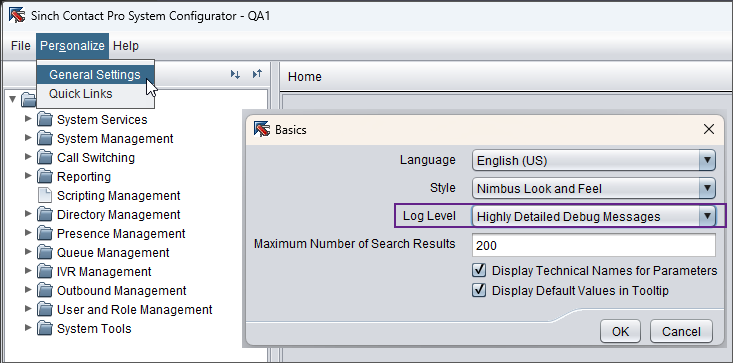
-
Click OK.
-
Reproduce the error one more time. This ensures that the detailed information is captured in the log files before you collect them.
Find and send the log files
-
Click the Start button (the Windows icon) in the bottom-left corner of your screen.
-
Type %TEMP% directly into the search bar and press Enter.
A File Explorer window will open to your user's temporary files directory.
-
In this folder, locate the log files. Look for files with names starting with:
-
ContactCenter_SC_date_***.log
-
JniLibIpcWrapper_***.log
-
-
Select the files from the time the issue occurred and attach them to your support ticket.