
Search for conversations
-
Click Conversations.
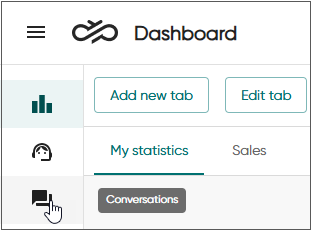
By default, the view:
-
shows the conversations of the current day until midnight, and newest conversations are listed first
-
loads 250 conversations per page
-
-
To narrow down shown conversations, use filters.
All columns offered in the dropdown list all have an associated filter except for Email chain, Transcript / Body text, and Internal notes text: they are not selectable columns but are available as filterable options.
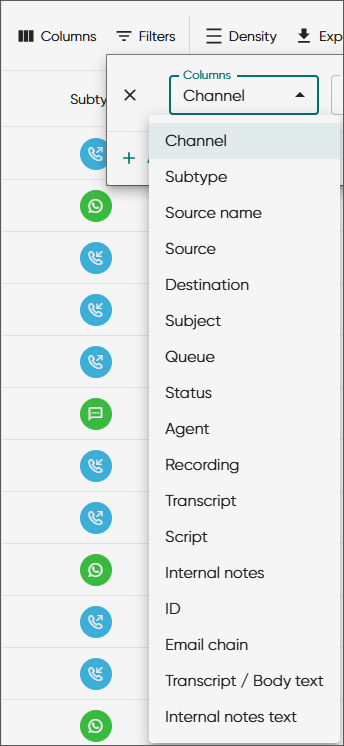
Table 1. Column descriptions Column Description Filter Channel The channel type shown as an icon
Hover your cursor over the icon to see more information.
Options: phone, chat, email
Subtype The subchannel type shown as an icon
Hover your cursor over the icon to see more information.
Options:
-
calls including the following:
- callback call to agent: the call where the system offers the call to an agent
- callback call to customer: the call where the system calls to the customer once an agent has accepted the offered callback call
- callback request: requests left by customers via Callback IVR
- campaign call: outbound campaing calls
- incoming call: calls coming in to the system and within the system
- Interactive Voice Response (IVR): calls involving IVRs
- outgoing call: calls made by agents
- outgoing IVR: outgoing calls made by a custom IVR
- SRM (simultaneous ring mode) call: calls where an external audio device has been defined for call handling in addition to Communication Panel
-
web chats and conversational messaging chats
-
emails and tasks
Source name The name of the caller/sender for an incoming queue conversation if found in the directory. To view it in Communication Panel, click the name.
If multiple matches are found, the system will indicate that the number/address belongs to several contacts.
Filter value: a name of a caller/sender
Source For incoming conversations, this is one of the following:- the phone number of the customer
- the email address of the customer
- the conversational messaging chat identifier of the customer
- the queue's email or chat address
- phone number of the queue
- the visible A number
Digits of external numbers may be replaced with X characters. The number of hidden digits is set in the System Configurator .
Filter value: a number or an address
Destination name The name of the call recipient, if found in the directory. To view it in Communication Panel, click the name.
If multiple matches are found, the system will indicate that the number/address belongs to several contacts.
Filter value: a name of a call recipient
Destination For incoming conversations, this is one of the following:
- the queue's email or chat address
- phone number of the queue
- the visible A number
For outgoing conversations, this is one of the following:
- the phone number of the customer
- the email address of the customer
- the conversational messaging chat identifier of the customer
Digits of external numbers may be replaced with X characters. The number of hidden digits is set in the System Configurator .
Filter value: a number or an address
Subject Subject line of an email or cut off text from a chat message
Filter value: an email subject or text from a chat message
Queue The queue where the conversation is being handled or has been handled
Select a queue directly from the list or narrow it down by starting to type a queue name.
Status The current status of the conversation: In queue, In process, Pending, Handled, Wrap-up, Deleted or Abandoned
Select a status directly from the list or narrow it down by starting to type a status.
User group The user group the agent belongs to
Select user group directly from the list or narrow it down by starting to type a group's name.
Agent The name of the handling agent
Select an agent directly from the list or narrow it down by starting to type an agent's name. For more information, see User group.
Arrival time The time when the conversation started
Not available as a filter
Connection time The time when the conversation was connected (answered)
Not available as a filter
Disconnection time The ending time of the conversation
Not available as a filter
Queuing duration The time a customer or conversation has waited in queue, excluding any automated events such as IVRs or prompts
Not available as a filter
Waiting duration The time a customer or conversation has waited, including automated events such as IVRs or prompts
Not available as a filter
Handling duration The time between connection and disconnection time
Not available as a filter
Wrap-up duration The time used by the agent for finalizing the conversation in the wrap-up stage
Not available as a filter
Total duration The total length of the conversation (the time between the arrival time and the last event of the conversation, for example, the disconnection time or the wrap-up ending time).
Not available as a filter
Script If a script was saved for the conversation, you'll see the script icon
 . To view the script in the
Conversation details view, click
on the conversation row in the table.
. To view the script in the
Conversation details view, click
on the conversation row in the table.Options:
-
any: All conversations, regardless of whether they have scripts
-
true: Conversations that have scripts
-
false: Conversations that don't have scripts
Transcript If the system is configured to save call transcripts, you'll see the transcript icon
 . To view the transcript, click
the icon in the Agent view column to
open Communication Panel.
. To view the transcript, click
the icon in the Agent view column to
open Communication Panel.Options:
-
any: All conversations, regardless of whether they have a call transcript
-
true: Conversations that have a call transcript
-
false: Conversations that don't have a call transcript
Recording If the call was recorded, you'll see the recording icon
 . To listen to the recording, click the icon in
the Agent view column to open Communication Panel.
. To listen to the recording, click the icon in
the Agent view column to open Communication Panel.
Options:
-
any: All conversations, regardless of whether they have recordings
-
true: Conversations that have recordings
-
false: Conversations that don't have recordings
Internal notes If the conversation has internal notes, you'll see the icon
 . To view the internal notes,
click the icon in the Agent view
column to open Communication Panel.
. To view the internal notes,
click the icon in the Agent view
column to open Communication Panel.Options:
-
any: All conversations, regardless of whether they have internal notes
-
true: Conversations that have internal notes
-
false: Conversations that don't have internal notes
Agent view To view the conversation in Communication Panel, click the
 icon.
icon.Not available as a filter
ID The ID of a conversation segment
Filter value: a conversation ID
Email chain not available as a column
Filter value: an ID for an email conversation
Transcript / Body text not available as a column
Filter value: a specific word or words that appear in a call transcript or in an email body text
Internal notes text not available as a column
Filter value: a specific word or words that appear in internal notes
Queue group not available as a column
Filter either by-
selecting queue group directly from the list
or
-
starting to type a group's name
Note the following about the text search:
-
There are common words that the search filters out. For best results, use keywords specific to the conversation or use double quotation marks.

-
When the conversation is opened into the History view in CP, there may be a brief delay before a recently completed conversation's internal notes appears. This is due to normal reporting processing.
When you've selected filter or several filters, the Search button turns to green.
-
-
To view conversations from a specific day within a chosen time frame, click the calendar icon next to the start time and select the date and time. Do the same for the end time
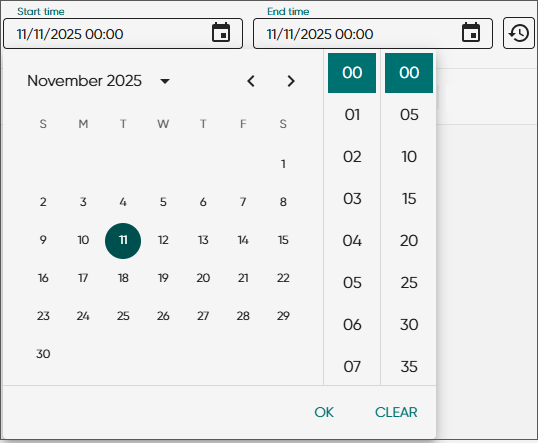
To reset the date and time picker to the current day (today), click the
 button.
 -
Click Search.
The table below describes the information shown in the Conversations view.