
Send an SMS
-
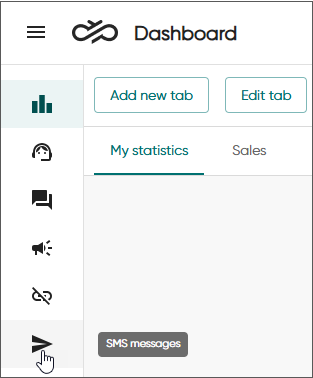
Click SMS messages.
-
Select recipients. You can do this in four ways:
-
Select one or several groups in the Recipient groups field by clicking the field or the arrow. The number of recipients is the number of entries in that directory group.

To remove a recipient group, click the
 icon
next to its name under Selected recipient groups
or deselect the group in the Recipient groups
dropdown.
icon
next to its name under Selected recipient groups
or deselect the group in the Recipient groups
dropdown.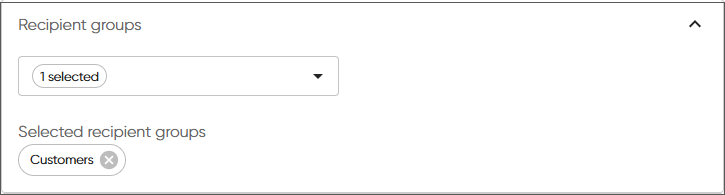
-
Select individual recipients from the directory in the Recipients from Directory field. You can type in the field to find a recipient. You'll only see recipients with a mobile number in their directory entry. Selected recipients are shown on the right.
To remove a recipient, click the
icon
next to their name under Selected Directory
recipients or deselect the recipient in the
Recipients from Directory dropdown.Note:For a directory recipient to receive an SMS, a mobile number must be specified in their directory entry. You can add a number in Communication Panel and System Configurator.
-
Manually enter mobile numbers in the Other recipients fields and click Add. You'll see added recipients on the right.
-
Alternatively, you can paste mobile recipients from an external source into the Added recipients field. Separate phone numbers with a comma and space.
-
-
Write the message in the Message content field. You can also paste text into the field. If you've moved to the SMS Messages view from the Disruptions view, the disruption details have been carried over.
-
In the Send from field, select the queue which the SMS message is to be sent from.
-
If you want to:
- send the message right away, click Send
- schedule sending for later:
- Select Send Later.
- Define the date and time.
- Click Send.
To empty the view without sending the message, click Clear. If you leave the view without clearing, you'll see your previously filled view when you return.
You can see sent messages in Dashboard's Conversations view or Communication Panel's History view.