
Manage disruption events
Create disruption events
-
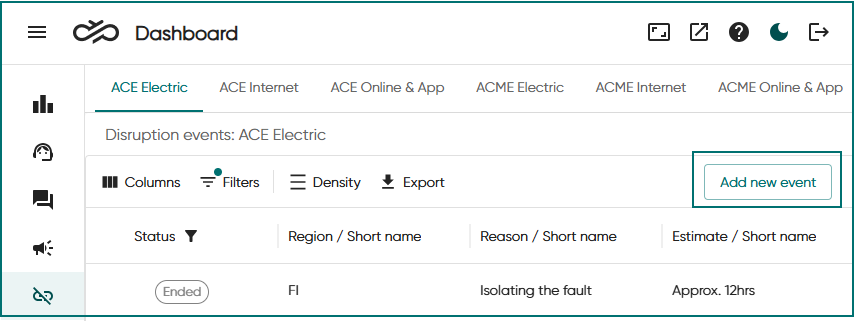
Go to the Disruptions view by clicking the icon.
-
If your system has several disruption sets, select the correct set to which you want to add a new event by clicking the tab.
Click Add new event.
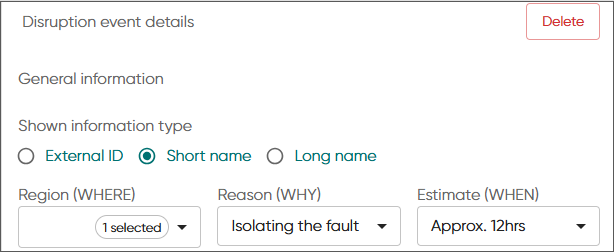
Choose the information type.
The short name is the default type.
-
Define the audio prompt information that is played to the customers.
- Region (WHERE): the area or areas where the disruption occurs
- Reason (WHY): why the disruption is taking place
- Estimate (WHEN): how long the disruption lasts or the time when the disruption is estimated to be over
-
If you want to show some additional information about the disruption event, use the Internal notes field.
-
To set the audio prompt to be played at a certain time, use the date and time picker in Disruption time.
If you don't define the start and end time, the audio prompt starts immediately and ends when you delete the event.
-
Save the disruption event.
Modify or delete disruption events
-
Choose the disruption set tab and then the event.
-
Click the event row.
-
Modify the disruption event as needed and then save it.
-
To remove the event, click Delete.