
WebHID-supported devices
The prerequisites for using WebHID-supported headset controls, such as answer, hang up and mute, in Communication Panel
The headsets are typically available in two variants: UC (Unified Communications) and Microsoft Teams Certified. To avoid problems, we recommend the UC model with Sinch Contact Pro. The Microsoft Teams variant works well in most cases but may behave unexpectedly in some situations.
If you purchase a Bluetooth headset, always use the dongle included with it. This is the manufacturer’s recommendation.
Microsoft Teams:
Plug-and-Play: It's designed to work perfectly with Teams right out of the box, with no extra configuration needed.
Dedicated Teams button: Most Teams-certified headsets feature a button with the Teams logo that allows you to quickly open the app, join meetings, or check notifications.
LED indicators: Often, the USB dongle or the headset itself will have lights that sync with your Teams status (for example, indicating a missed call or message).
UC (Unified Communications):
Broad compatibility: This is the standard variant, designed to work reliably with a wide array of softphone platforms like Zoom, RingCentral, Cisco Jabber, Avaya, and many others, in addition to Teams.
Best for multi-platform use: If you use several different communication applications, the UC is generally the safer and recommended choice to avoid potential conflicts where a Teams-certified device might try to prioritize Teams over another app.
Supported devices
The following are tested as HID compliant and therefore supported:
| Manufacturer | Product series* | Manufacturer's software | Supported OS and browsers |
|---|---|---|---|
|
Jabra |
Evolve1 |
Not required but recommended for maintaining the device and keeping it up to date |
|
| Evolve2** | |||
| Evolve3 | |||
|
Engage |
Requires Jabra Direct |
||
|
POLY |
Voyager Focus 2 |
Requires HP Poly Studio |
|
|
EncorePro |
Requires HP Poly Studio |
||
|
Savi 8400 |
Requires HP Poly Studio |
||
|
Voyager 4320 |
Requires HP Poly Studio |
||
|
EPOS | Sennheiser |
SC600 series |
Not required but recommended for maintaining the device and keeping it up to date |
* = We tested at least one model from each product series. Results are expected to apply to other models within the same series.
** = The headset’s mute button doesn't work on macOS.
Enabling the device
Prerequisites
Although not mandatory for all devices, we recommend that software from the manufacturer is installed before selecting it in Communication Panel.
Selecting the device
-
In Communication Panel, go to .
-
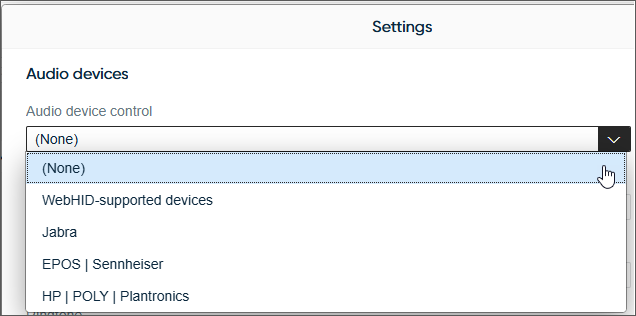
For the Audio device control, choose WebHID-supported devices and click Save.
-
Communication Panel will request permission to find local WebHID devices. When this prompt appears, click Yes.
-
After you grant permission, your browser will open a pop-up window showing a list of detected devices. Select your device from this list and click Connect.
The headset should always be used with its manufacturer-provided USB Bluetooth dongle. Devices connected directly to the workstation's Bluetooth won't work.
Disabling the device
To stop using the WebHID device, users need to change the CP setting to (None).
To completely disable the device, the browser's permission to use the device needs to be removed.
Troubleshooting
The table below describes potential issues and provides their solutions.
| Issue | Solution |
|---|---|
|
Conflicts with other apps: Having other applications open that also use WebHID (for example Microsoft Teams and Zoom) can lead to unexpected behavior like calls being answered or hung up abruptly. |
Close the other applications or temporarily disable the WebHID device. |
|
Device not appearing |
Check the physical connection, ensure the device is powered on and supports WebHID. |
|
Controls not working |
Disconnect and reconnect the device, and then enable the setting in CP again. |