
Add tabs
Start by creating a tab to which you add cards.
- Click Add new tab.
- In the Title field, enter a name for the tab.
- Click OK.
- Add cards to the tab.
To edit the tab title, click on Edit tab, make your changes and click OK.
To delete the tab, click Edit tab and click Delete.
To change the order of your tabs:
-
Open Tab settings.
-
Select the tab(s) you want to move and use the arrow icons to move them.
-
Click OK.
Carousel mode
You can set your tabs in carousel mode, which means they will be cycled automatically.
To use the carousel mode:
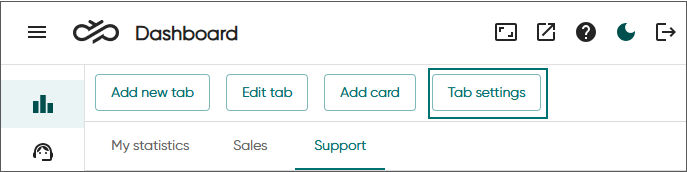
Click Tab settings.
Switch on Enable carousel mode.
Select the tabs you want to include in the carousel.
By default, each tab is shown for five seconds. If you want some of the tabs, or all, to be visible longer, increase the value.
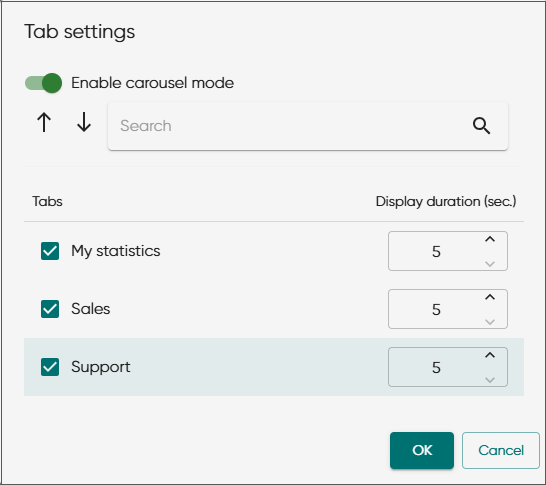
Click OK.
-
To stop the carousel mode, click on any of the buttons that opens a popup window.
Wallboard view
You can also view the statistics in full-screen mode.
Click the wallboard view icon.

Now you can drag the view to a different display and show only the selected statistics as the browser's address bar and other settings are hidden.
You can also resize and move the cards in the wallboard view.
To leave the view, click the wallboard view icon
 again or
press the Esc key.
again or
press the Esc key.