Create a customer information template
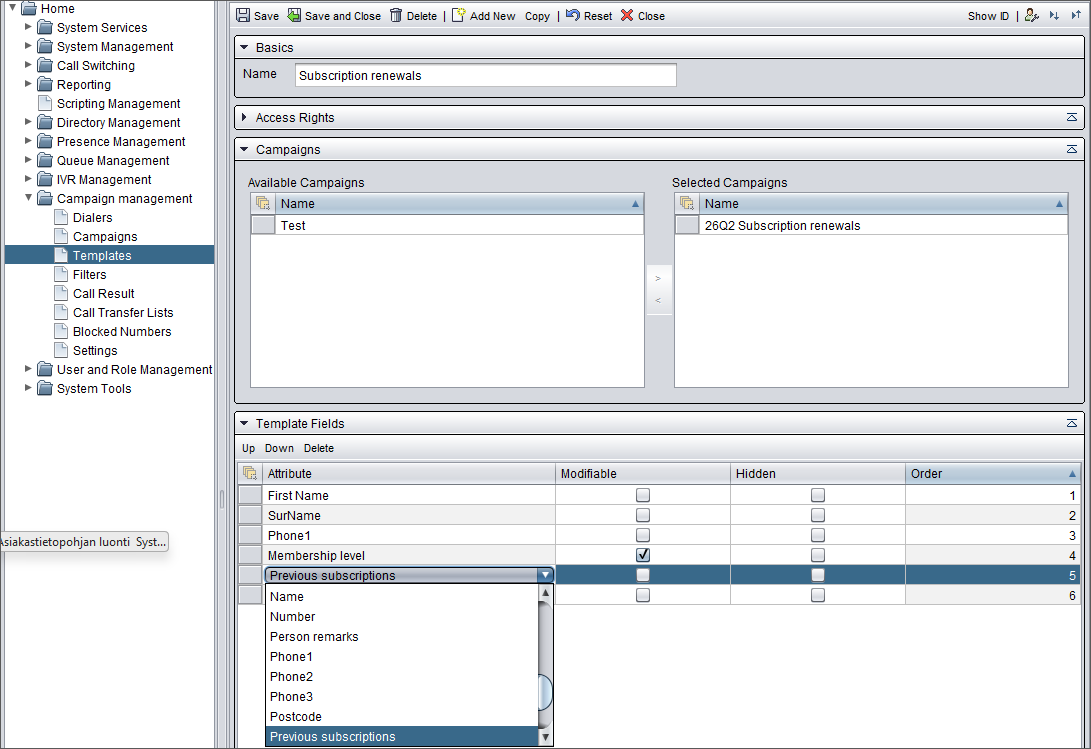
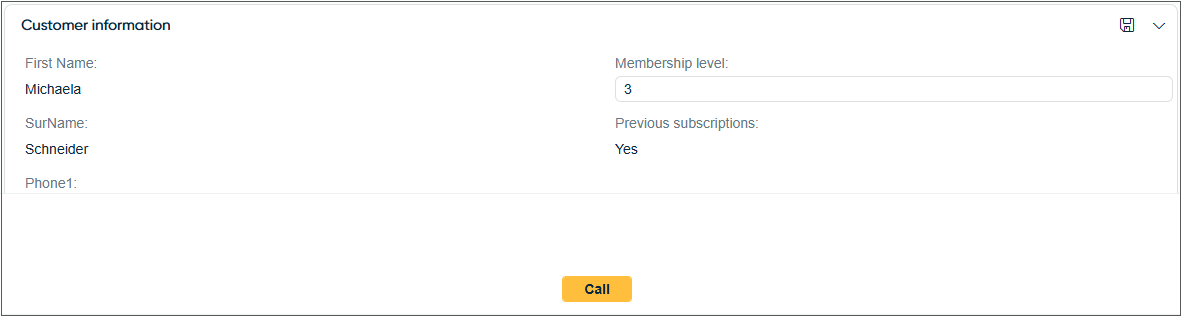
Each campaign needs to be linked to a template. It contains the fields you imported with the calling list, and agents see them under Customer information in Communication Panel (CP).
-
In click Add new.
-
Enter a name for the campaign.
- In the Campaigns block, choose your campaign from the Available campaigns list and click the arrow to move it to the Selected campaigns list.
In the Template fields block, define the fields you want to include in the template by clicking a row in the Attribute column.
-
To allow agents in CP to modify the information of the selected field, select Modifiable.
-
To hide this field in the CP, select Hidden. Note that the field will still be included in campaign data exports.
-
To change the order of the fields, use the Up and Down buttons.
-
Save the template.