
Define campaign settings
These procedures show the main settings you define when you set up your campaign. Depending on your campaign, you may also need to configure other settings. For a complete list of campaign settings, see Campaign management in the System Configurator document.
Open the campaign you created when you imported the calling list. When you have configured the settings, save the campaign.
Basic settings
-
Go to and search for the campaign.
-
Double-click the campaign row.
-
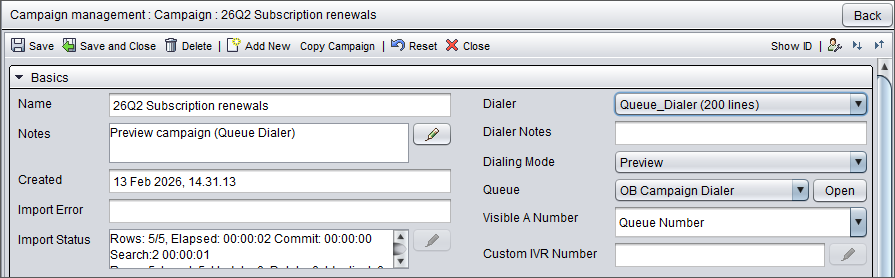
In the Basic settings block, choose:
-
The dialer for the campaign
-
Dialing mode
Preview
In this mode agents can view the customer data before making the call. By default, there is no time limit for viewing the customer information before the call. During the preview and wrap-up the phone line is not busy.
Progressive
After the agent has wrapped up a call, the software chooses a new customer automatically and makes the call immediately. The agent gets no preview time.
Predictive
The software makes calls automatically. When a customer answers the call, it is immediately connected to a free agent. Predictive calls are first connected to a queue from which they are then allocated to agents.
-
Queue
Choose the queue to which the campaign is added. A queue is required for reporting purposes. Campaign calls are placed as direct calls and do not go through contact center queues.
You can either
use a dedicated queue created specifically for the campaign
or
reuse an existing incoming call queue for campaign calls, as long as it's not used with the Queue Dialer.
Note:Using the same queue for queue dialer and campaign dialer is not supported. Visible A number
Choose which number is shown for customers as the agent’s number during the campaign. If the number is not defined, the number of an agent is used.
To use calling line identification restriction (CLIR), choose Unknown Number.
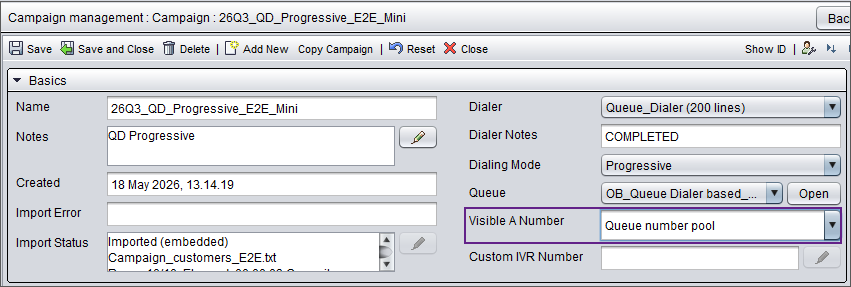
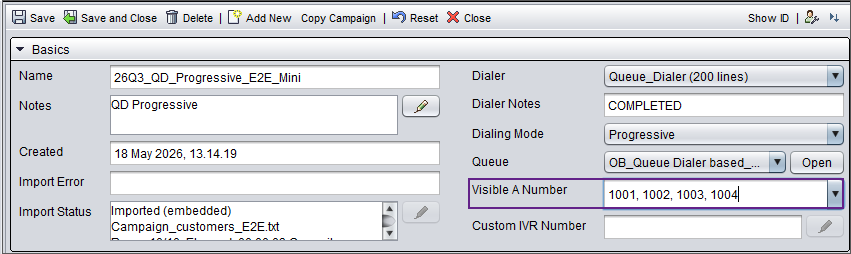
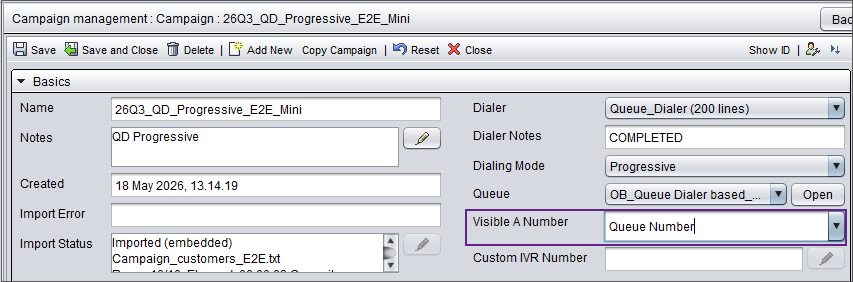
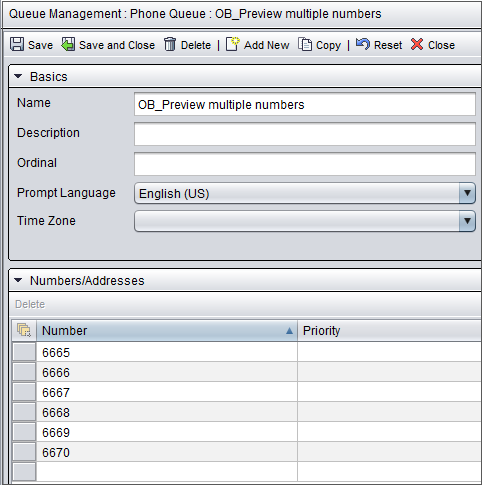
To use the number pool feature, where the system the system selects numbers from the campaign queue in a random order, configure it in one of the following ways:
Select Queue number pool, remove the text, and add a comma-separated list to the field.
or
Select Queue number and enter the numbers in Numbers/Addresses in the campaign queue settings.
When a call is redialed, the system may use the same or a different number, as it doesn't keep track of which number was previously used for each customer.
-
User interface settings
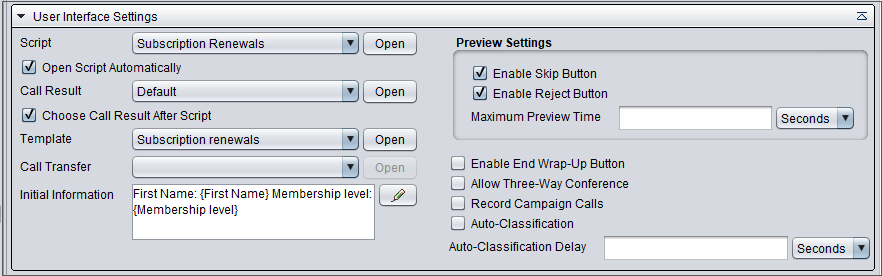
Next you configure settings related to Communication Panel user interface.
| Field | Description |
|---|---|
|
Script |
Choose the script used in the campaign from the list. When you have selected the script, you view and/or modify it by clicking Open. |
|
Open script automatically |
Select this to open the script automatically when a customer answers the call. |
|
Call result |
Choose the call result from the list. When you have selected the template, you can view and/or modify it by clicking Open. |
|
Choose call result after script |
Select this option if you want the agent to define the call result after filling out and saving the script. If this option isn't selected, saving the script sets the call result to Successful. |
|
Template |
Choose the template that defines the contents of customer information. When you have selected the template, you can view and/or modify it by clicking Open. |
|
Initial information |
Choose the initial customer information to be shown. If nothing is chosen, the default definition made in is used. |
|
Preview settings |
|
|
Enable End wrap-up button |
Select this option if you want that the End wrap-up button is enabled in Communication Panel. If the button is not in use, the wrap-up ends when the call result is saved. |
|
Record campaign calls |
Select this option if you want to record campaign calls. Note: You can only select this option when the system-wide recording mode is Specified for User, Queue or Campaign. |
|
Auto-classification |
Select this option if you want to automatically set a call result for unsuccessful campaign calls. The following call results can be classified automatically:
If you choose auto-classification in your campaign, you should also disable Early Media in . |
|
Auto-classification delay |
Define the time that auto-classification information is shown for an agent, giving them a possibility to override auto-classification. After the defined time, the call is automatically classified (for example Busy). Then the system performs the end wrap-up function and allocates a new call to the agent. |
Dialing settings
- For the Max. ringing time (sec.) setting:
Enter the maximum time the phone rings when trying to reach the customer. Enter the value in seconds. The value range is from 15 to 30 but we recommend a range from 15 through 22. The default value is 15.
For the Early Media setting, choose Avoid Early Media Trunks.
This is the default for campaigns. Only the trunks where Early Media is disabled are used as long as there is capacity. After this, also other trunks may be used.

Redialing settings
- For the Redialing inteval setting:
Enter the time to wait before trying to call a customer again when the call result is Redial, Busy, No Answer, or Answering Machine. The default value is 10 minutes (600 seconds).
The other options you can do with this setting are:
Schedule a redialing time for the call result Redial.
Choose the Next Round option in the unit field. In this case no specific redial time is used but the customer is called again in the next call round. This can improve performance when the agent does not have to wait for the scheduled redials.
- For the Number of redials setting:
Enter the number of times to retry calling a customer after the first call.When the number of redial times is reached, the customer is dropped from the calling list. The default value is 3.