
Create and import the calling list
You need a file with customer information that you import the file to your campaign.

In this procedure, you create the campaign at the same time you import the customer information.
-
To use an example file when creating the calling list, contact Sinch.
To create the file from scratch:
-
Open Excel and enter at least the columns ExternalId and Phone1 and other columns according to your needs.
To call customers in a specific sequence rather than their order in the file, add a Priority column to your file. Customers will be called in order from highest priority to lowest.
-
Fill in the information in the columns and save the file as .txt.
-
-
Import the calling list:
In the Campaigns view, click Import.
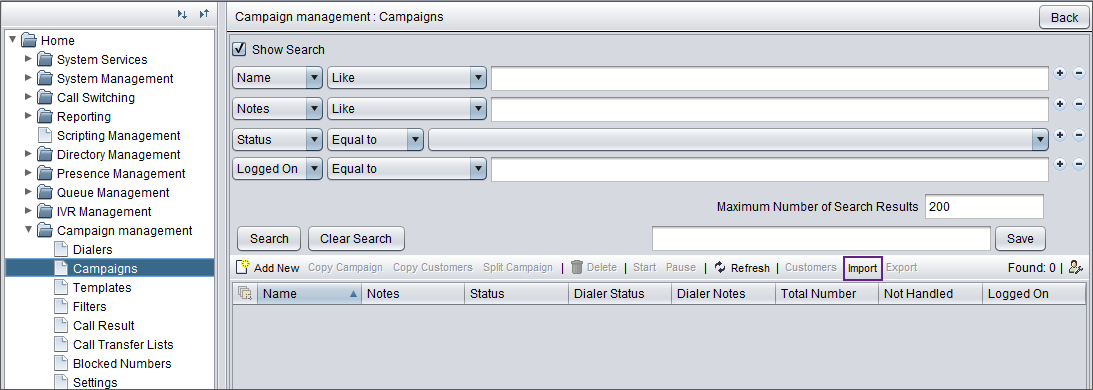
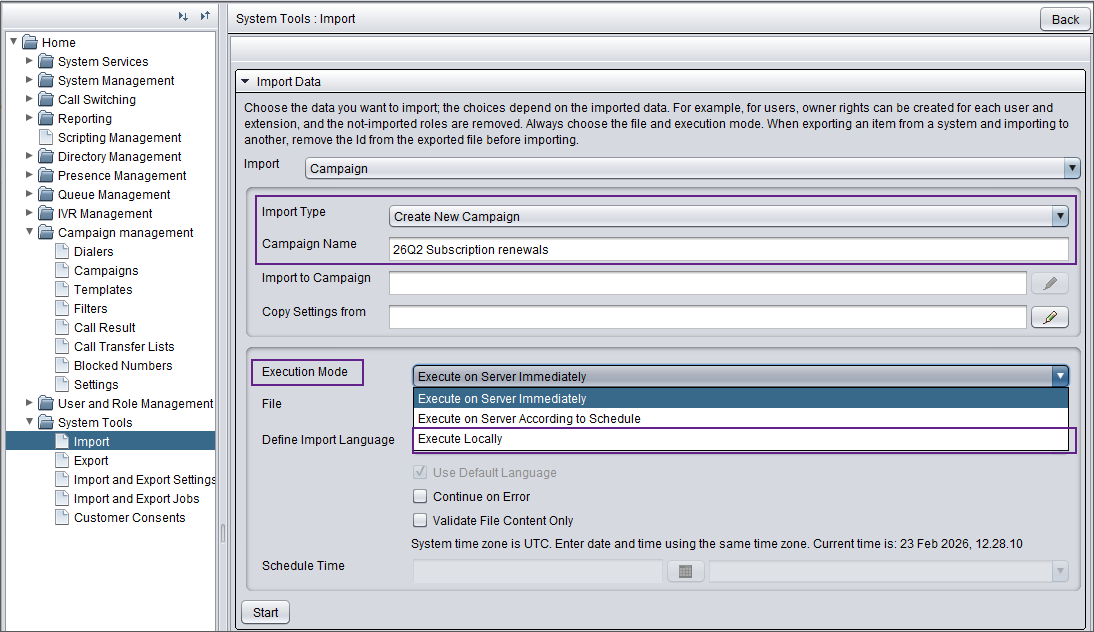
The import view opens and Create new campaign is automatically selected as the import type.
-
Enter the campaign's name.
-
If you want to use the same campaign settings as an existing campaign, choose the campaign in Copy settings from.
-
For Execution mode, choose Execute locally.
-
If you want to check that your file is correct in format, select Validate file content only and click Start. This only validates the file and doesn't carry out the import.
To import the file, deselect Validate file content only if you've used the validation option and click Start.
To check that the calling list information was imported correctly, go the Campaigns view and click Customers.
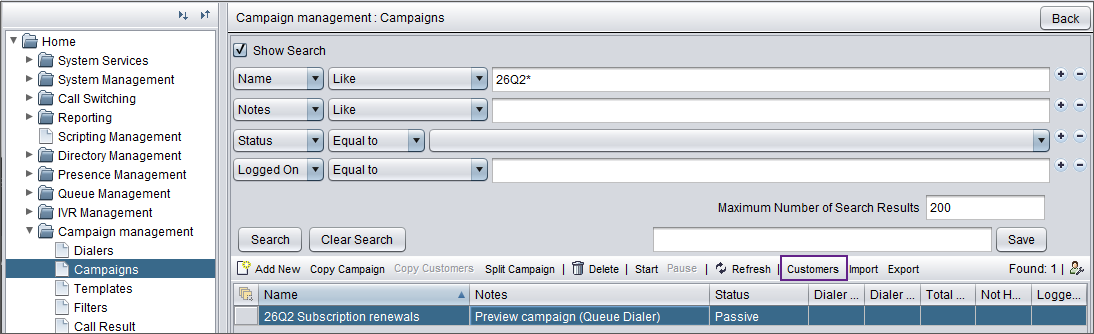
The campaign's customer list opens.