
Create a script
Depending on the campaign, scripts are used to guide agents through conversations with customers, ensure consistency, and gather information.
Basic settings
-
Go to Scripting management and click Add new.
-
Choose the script type:
Interactive scripts
This questionnaire-type script shows users one question-answer pair at once and then, based on the answer or the defined order, goes to the next question. These scripts can be used in campaigns as well as with incoming calls.
Static scripts
This fixed-type script is used, for example, for classifying calls.
-
In the Basics block, enter a name for the script.
You can also enter a description for the script in the Notes field. This is shown only in SC.
-
Save the script.
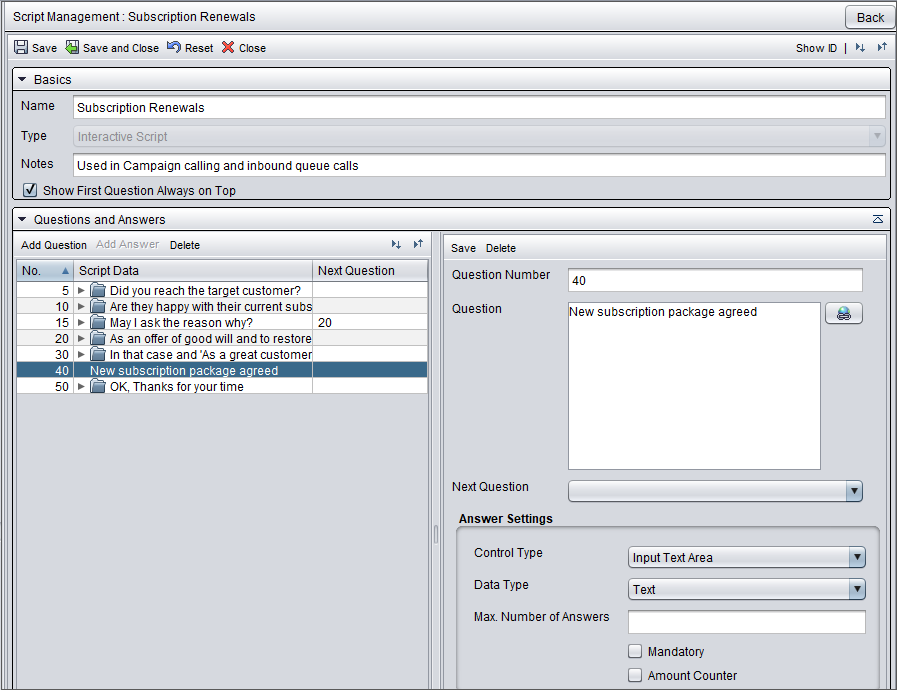
Questions and answers
Add the first question in the Question field.
The Question number field is updated automatically. The numbering starts with 10 and then continues with 20, 30, and so on. If you notice that you need a question between the questions 30 and 40, it is easy to add a question number 35. If you want to use different numbering system, you can change the prefilled value.
Note that the field is for defining the order of questions. These numbers are not displayed to the agents. If you want that the script contains an ordinal number for each question, add the numbers in the question text, for example
3. Which software applications do you use in your daily work?
.If you want to include hyperlinks in the question, click the hyperlink icon
 . A dialog box opens. Choose the
hyperlink type and enter the address. You can also enter a
description for the link.
. A dialog box opens. Choose the
hyperlink type and enter the address. You can also enter a
description for the link.In the Answering settings, choose the answer field type in Control type.
If you choose Checkbox, Combo box, Drop-down list with checkboxes or Drop-down list, you must enter the answer options as well.
In Data type field, define the information type allowed in the answer field.
This field is mandatory for all other control types except Information.
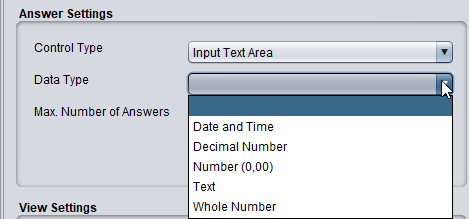
To specify the number of answers allowed for the question, enter a value in the Max. number of answers field. The setting applies to types Combo box, Input text area, and Input text field.
If you want that agents must ask this question, select Mandatory.
Amount counter and View settings are not supported in scripts used in Communication Panel
Click Save.
To enter the answer-related information, do the following:
Click the question row and then the Add answer button.
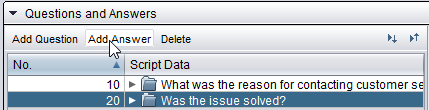
Define the answer options according to the table below.
Field Description Answer
Enter the answer option text in the field.
Ordinal
To set the order of an answer option, enter its ordinal number.
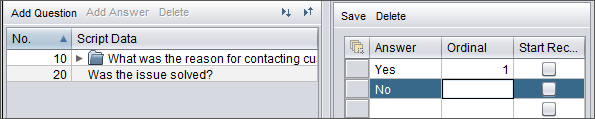
Start recording
This is not supported in scripts used in Communication Panel.
Click Save.
To include the rest of the questions in the script, click Add question, enter the questions and define their answer options.
If you're creating an interactive script, choose which question appears next based on the given answer.
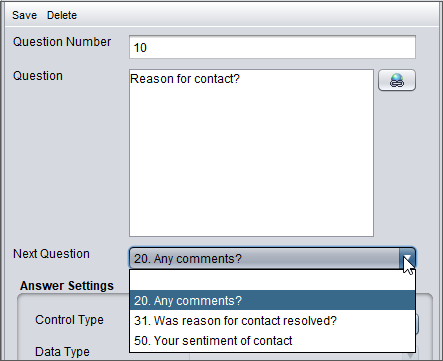
This ensures the script follows the correct path. You can also define the next question based on the previous question.