Search for campaigns
-
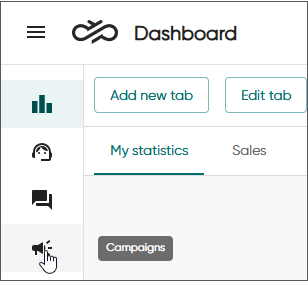
Click Campaigns.
By default, the UI shows active campaigns that you have permission to view.
-
To view campaigns with other statuses, use the Status filter.
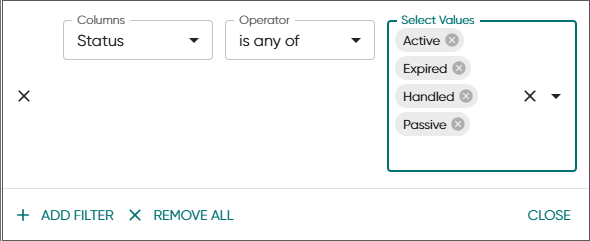
You can also use other columns as filters.
-
To view campaigns that started and ended within a specific time frame, set the start and end date ranges.
-
Click Search.
The table below describes the information shown in the Campaigns view.
| Column | Description |
|---|---|
| Name | The name of the outbound campaign |
| Queue | The queue to which the dialer is configured and from which agents serve the campaign |
| Created |
Date and time when the campaign was created |
| Notes | Additional information provided in the configuration of the outbound campaign |
| Dialing mode | The dialing mode used for the outbound campaign Options are:
|
| Dialer name | The name of the dialer given in System Configurator |
| Start date | The scheduled start date when the queue dialer starts campaign
calling Requires the campaign to be set to start beforehand |
| End date | The scheduled end date for the campaign Queue dialer no longer dials from an expired campaign. After this date, the campaign is only displayed in the list if it has been configured to stay open. |
| Time zone | The time zone used in the campaign, according to configuration |
| Status |
Displays the status of the campaign:
|
| Total customers |
Total number of customers to be called in a campaign The number appears only after the campaign has been made active. |
| Callable / Remaining | Ratio between customers that can be called now / total number of customers remaining to be called |
| Agents |
Queue Dialer: Number of agents currently serving in the campaign queue Campaign Dialer: Number of agents currently logged into the campaign To view a list of the agents in the Agents view, click on the number. |
| Handled |
The number of customers that have a campaign outcome and do not require more call attempts |
| Not handled |
Number of customers that have not been called yet (who are not Handled, Max. calls, or Filtered) This number tells you how much of the campaign remains to be completed. |
| Calls made |
Number of calls made in the campaign during the current day / overall campaign total |
| Success |
Number of calls where the agent has classified the call as Success |
| Called success rate |
Percentage of handled calls where the agent has classified the call as Success |
| Called refusal rate | Percentage of handled calls where the agent has classified the call as Refusal |
| Total talking time |
Cumulative talking time for connected campaign calls. For Predictive campaigns, this includes any time where prompts messages were played for a queuing customer. On the Campaign Statistics tab, this includes the talking time of all agents who participated in the campaign. |
| Talking time avg. |
Average talking time for a campaign call, per campaign. Displayed as average talking time for the current day / average talking time overall for the campaign |
| Max. calls |
The number of customers that have reached their allowed number of redials defined in the campaign's settings in System Configurator. |
| Filtered |
Number of customers that have been filtered out from the campaign so will not be called |
| Hang-ups |
If the dialing mode is:
|
| Hang-up rate |
Hang-Ups as a percentage of the handled calls in the campaign so far |
| Campaign progress |
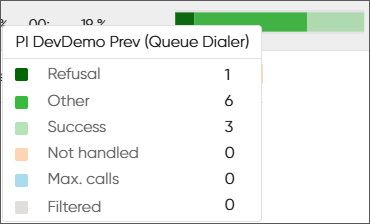
Progress of the campaign shown as a stacked bar chart:
Hover your cursor over the bar chart to see the detailed total numbers for each result.
|