
Dashboard
The following changes and improvements have been made in the area of the new Dashboard.
Legacy Dashboard
The legacy Supervisor Dashboard has been officially retired and removed.
All references to Dashboard
in our user interfaces and
product documentation refer exclusively to the new
Dashboard.
Improved search result count
The data grid footer now shows supporting information related to the loaded data and search results. If there are more results than fit on the current page, a plus sign is shown (for example, 50+). The previous Load more button has been replaced with next-page arrows. This is now the method to load more data and navigate through the pages.
The maximum number of rows per page is 500.
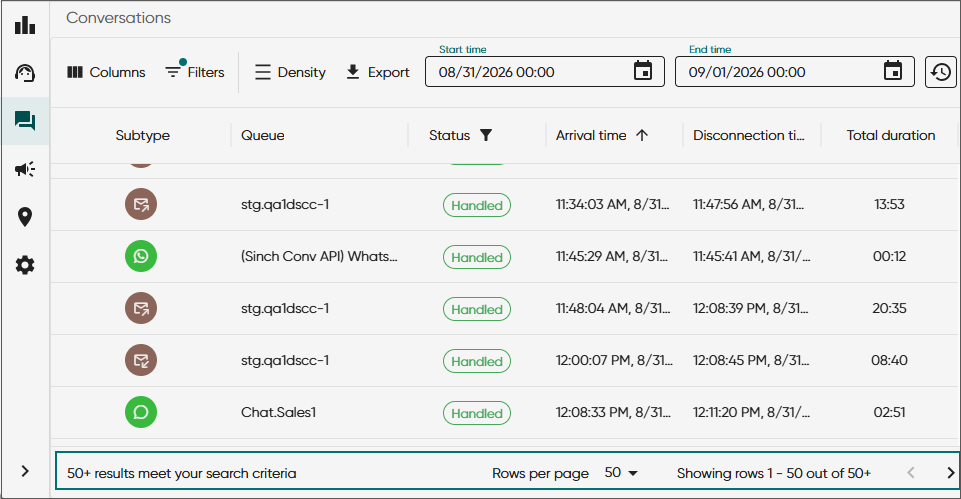
Since loading limits are now controlled by the Rows per page setting, the loading limit options have been removed from the Settings view.
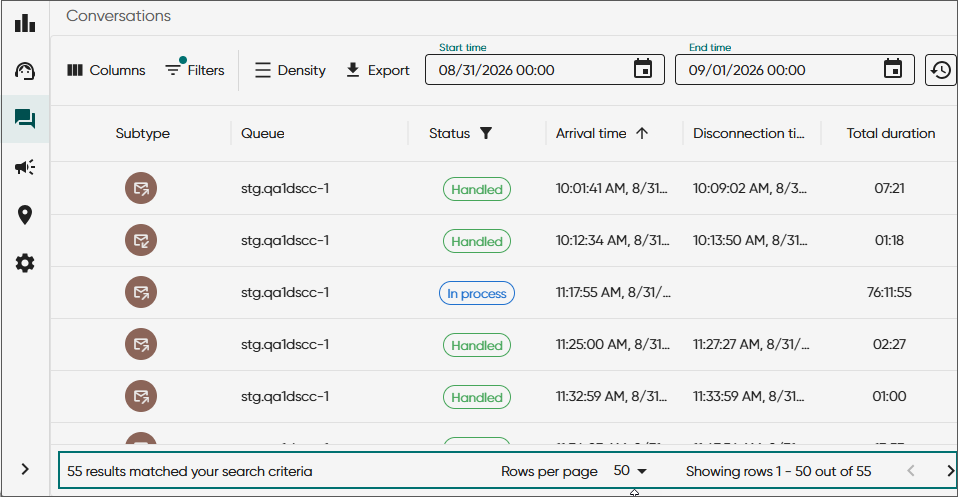
Beta: Total result count option
On a feature trial basis, 26Q4 offers a result count option where users see the exact number of results from the initial search. Create support ticket to inform your interest in this feature.
Hiding unused menu items
The following menu items are now hidden if there's no corresponding data:
-
Campaigns: Not shown if there aren't any active or passive campaigns in the system.
-
Disruptions: Not shown if there aren't any disruption sets in the system.
-
SMS messages: Not shown if there aren't any outgoing chat queues in the system.
The Emergency location view can also be hidden for your organisation via a support request.
Wrapping for long queue names
To accommodate long queue names in the Agents > Queues view header cell, text is now wrapped over multiple lines for better readability.
Agent details view
The Skills and Queues sections in the Agents details view now have a sticky header and a separate scroll bar.
From the feature request FR1128