
Call transcription and analysis
If your administrator has configured call transcription and analysis to be done by AI, you'll see them along with the recording player in the User recording or Queue recording section.
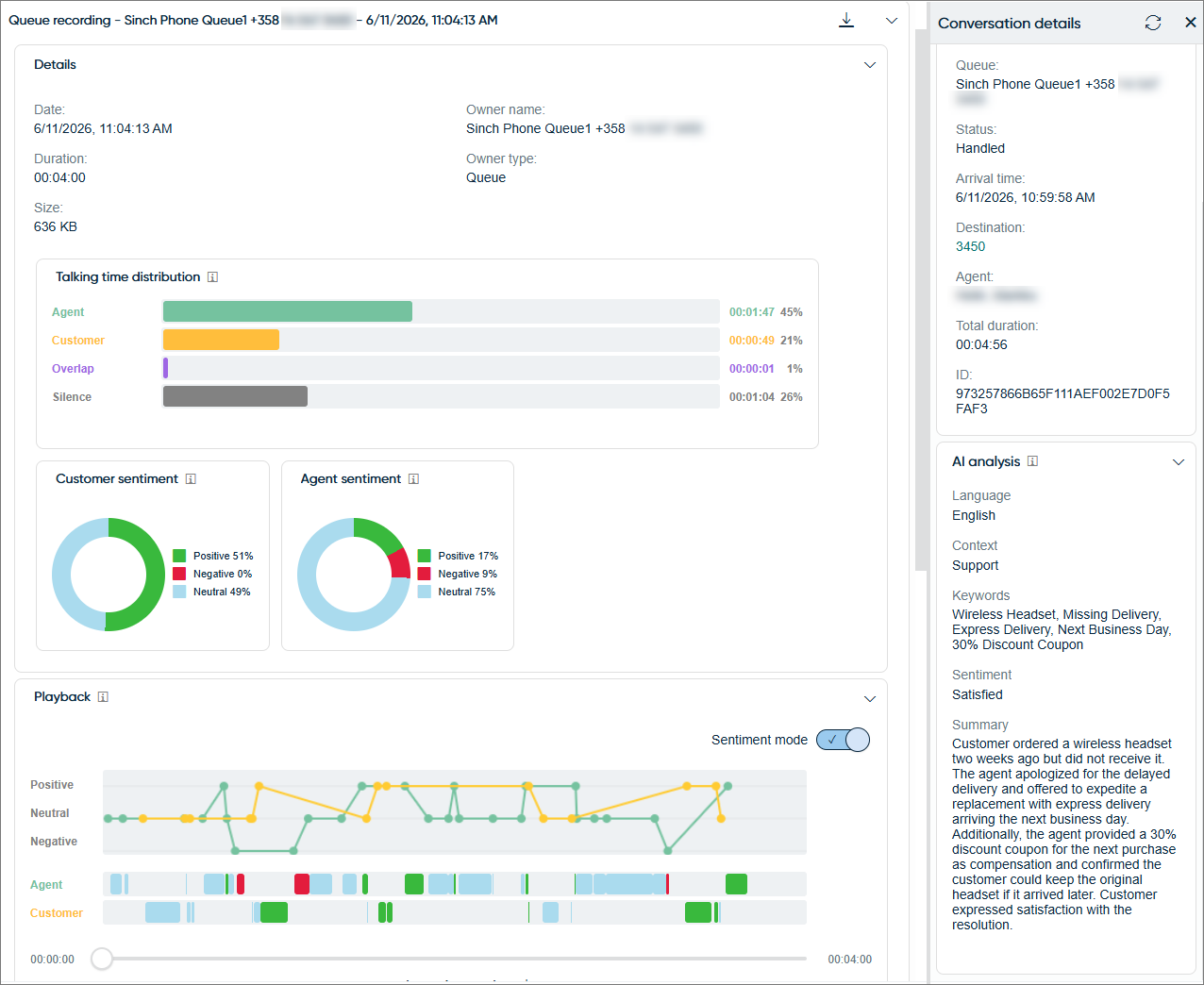
You'll see the AI analysis and call transcript of the recording in Communication Panel:
The AI analysis and call transcript may take a while to appear. To refresh the view, click the
refresh button at the top right  . In
some cases, seeing the analysis and transcript may take until the next batch job
run.
. In
some cases, seeing the analysis and transcript may take until the next batch job
run.
Here's what you can expect to see in this view.
Call recording details
Owner name: the name of the user, queue, or campaign that the recording is connected to
Owner type: User, Queue, or Campaign
Talking time distribution
Speakers identified by numbers or roles (Agent/Customer), depending on configuration.
The colors also show talking time on the playback timeline.
Customer/agent/consulted agent sentiment
The colors also show sentiment on the playback timeline if Sentiment mode is on. Sentiment changes for each speaker during the call are shown on a line graph. In addition, you'll see positive and negative sentiments for speaking turns in the conversation transcript depicted with an arrow.

Playback
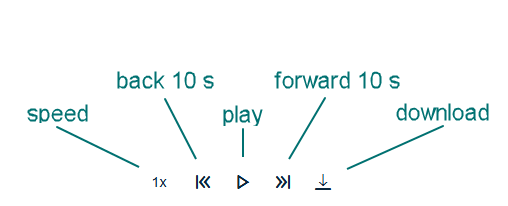
Use the playback controls for playing and pausing the playback, moving backward and forward on the recording, increasing playback speed, and downloading the recording.
Call transcript
To have the transcript scroll automatically when the recording is playing, select Auto-scroll.
Call transcript and AI analysis are also shown in SAP Service Cloud (C4C) when this integration is used.
AI analysis in the Conversation details extension
Shows you the following information compiled by AI:
- Language: the language of the conversation
- Context: a concise characterization of the context of the conversation
- Keywords: a few keywords to describe the conversation
- Sentiment: the customer sentiment in the conversation
- Summary: a compact summary of the conversation
If you see an Edit AI analysis button, you'll also be able to edit the analysis. This may be useful, for example, in case of inaccuracies in the analysis. If the analysis has been edited, the name of the agent and the timestamp of the edit is shown under the analysis.