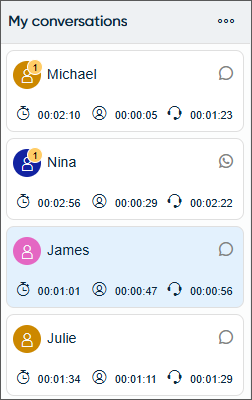
Conversation list timers
Administrators can define that My conversations shows timestamps of activities against the active conversations in the list. When you have many chat conversations ongoing at the same time, these timers help you to recognize which conversation to deal with next.
| Timer | Icon | Description | Available for |
|---|---|---|---|
|
Elapsed time since the conversation arrived |
|
Shows the elapsed time since the conversation arrived. The timer is
based on the queue setting Handling time
limit in System Configurator (SC). The timer changes
color based on the handling time limit:
|
Calls, emails, and chats |
|
Elapsed time from customer’s last message |
|
Shows the elapsed time from the customer’s last message. This timer is based on the timestamp of the last customer message sent (for the current conversation). The time will reset when the next customer message is sent. |
Chats |
|
Elapsed time from agent’s last message |
|
Shows the elapsed time from your last message. The timer is based on the timestamp of the last message you sent (for the current conversation). The time will reset when the next agent message is sent. |
Chats |


Sort My conversations list
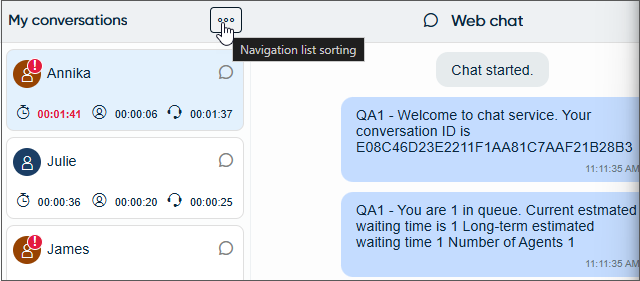
You can decide the order in which the active conversations are shown. The sorting doesn't apply to conversations that are pending or you're viewing. By default, the list is sorted by arrival time in ascending order.
-
Click the Navigation list sorting.
-
Choose how your active conversations are sorted.
-
Arrival time: Sorts the list according to the time the conversations entered the queue
-
Type: Sorts the list according to the conversation type
-
Status: Sorts the list according to the conversations' status: active or in wrap-up
-
Elapsed time from customer's last message: Sorts the list by the elapsed time since the customer's last message was sent
-
Elapsed time from agent's last message: Sorts the list by the elapsed time since the agent's last message was sent
-
For example, to prioritize conversations with the newest customer responses, sort by Elapsed time from customer's last message in Ascending order.
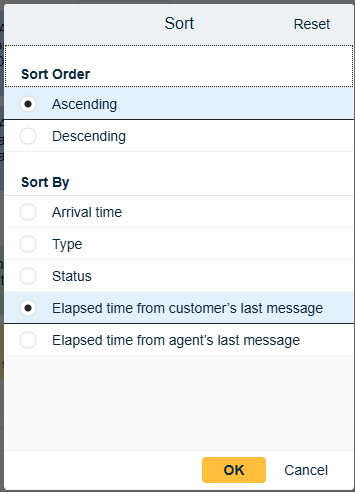
This will move the conversation with the most recent reply to the top of your list.