
Configuring Sinch Conversation API
When using Sinch Conversation API as a messaging service, you should configure all webhooks with a secret to enable digital signature verification in Sinch Contact Pro for incoming (Mobile Originated) messages. For outgoing (Mobile Terminated) messages, the recommended authentication is OAuth2. Instructions below enable you to configure integration in a secure way.
In Sinch Conversation API, webhooks are configured per app, and each webhook has its own secret. In the System Configurator (SC) application, only a single webhook secret can be configured per messaging service and it applies to all apps within that messaging service. But if your project extends over multiple messaging services, one webhook secret per service is needed. For example, if you have apps in different regions but the project is the same, you need to configure two messaging services.
- When you create your app in Sinch Build, select Conversation mode as the processing mode.
- If you are setting up a SMS channel, inform Sinch of the phone number you want to use for outgoing SMS messages. Currently, you cannot configure this number yourself.
Prerequisites
-
You've created and configured your project and apps API in Sinch Build (https://dashboard.sinch.com/login). Note that while the integration with Sinch Conversation API is built in, it's an additional service billed separately from Sinch Contact Pro.
-
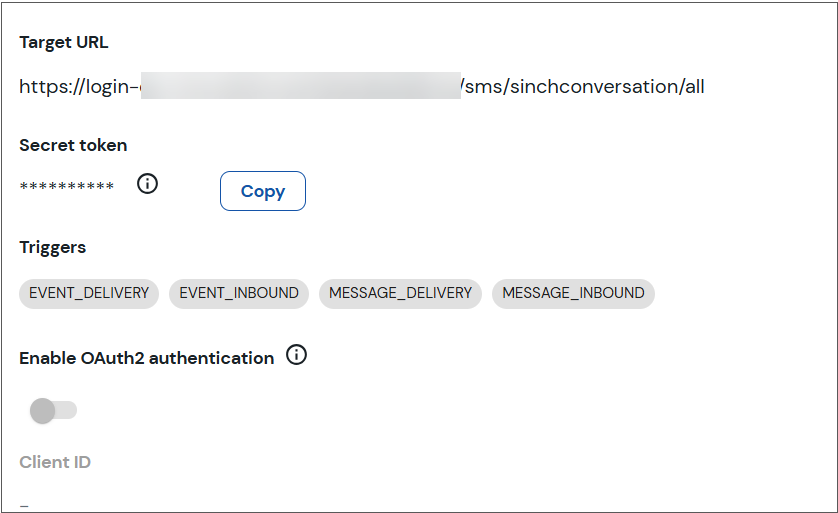
You've selected the triggers your service needs when you added a webhook in Sinch Build:
- MESSAGE_INBOUND is mandatory. Without it, your system won't receive any messages.
- MESSAGE_DELIVERY is required for showing:
- delivery status notifications to agents in Communication Panel
- delivery errors
- quoted messages to agents in Communication Panel
- EVENT_INBOUND is for Sinch Chat to enable customers to end chat.
-
The target URL you enter in depends on your region and is one of the following:
Data center region URL Europe https://login-eu-c1.cc.sinch.com/[tenantname]/sms/sinchconversation/all North America https://login-na-w2.cc.sinch.com/[tenantname]/sms/sinchconversation/all Africa [https://login-af-s1.cc.sinch.com/[[tenantname]/sms/sinchconversation/all] Australia [https://login-au-s2.cc.sinch.com/[[tenantname]/sms/sinchconversation/all] If you don't know your region, you can get it from the Communication Panel URL. Or you can contact Sinch using the request type Inquiry in the support portal.
Configure the sinchconversation message service in SC
-
Go to .
-
Choose Add New and sinchconversation.
-
In the Basics block, enter the following:
- Name: name for your service
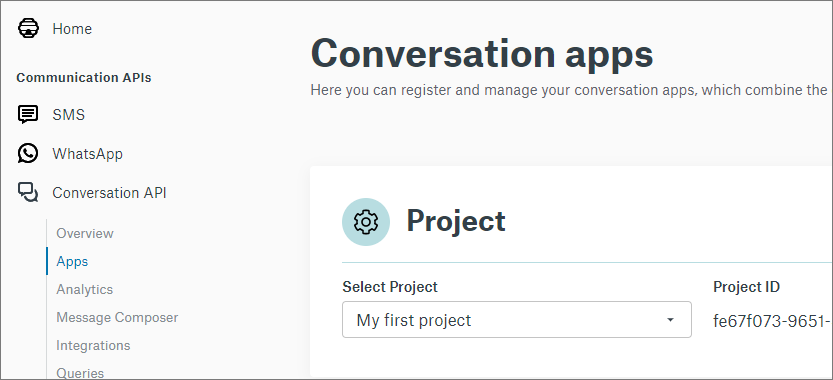
- Service connection: The URL is of the following format:
- EU (Europe): https:// eu.conversation.api.sinch.com.conversation.api.sinch.com/v1/projects/[project ID]
- US (United States):https:// us.conversation.api.sinch.com.conversation.api.sinch.com/v1/projects/[project ID]
- BR (Brazil): https:// br.conversation.api.sinch.com.conversation.api.sinch.com/v1/projects/[project ID]
Replace [project ID] with your project ID.
- Authentication URL:
https://auth.sinch.com/oauth2/token
The messaging service works without an authentication URL, but then basic authentication is used instead of the OAuth2. Basic authentication should be used only for development and testing.
-
In the Authentication block, define authentication for outbound messaging (consisting of key ID and app ID) and inbound messaging (webhook).
Note:Create a separate entry for both outbound and inbound messaging.- For outbound messaging, enter
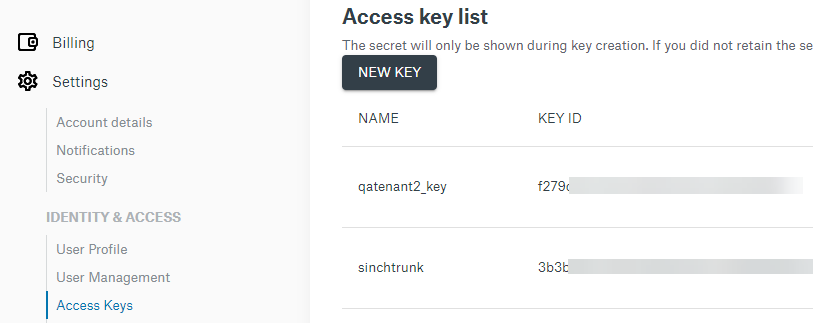
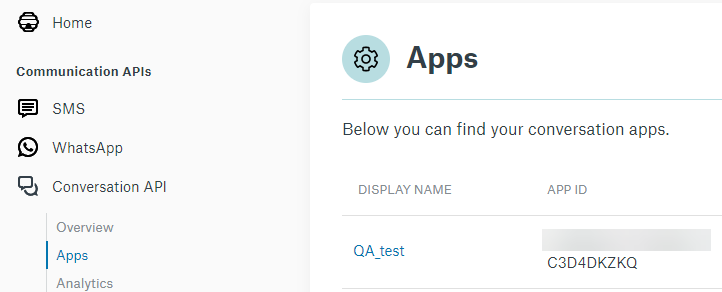
- authentication ID: Format is [Key ID]@[App ID]
You get the Key ID from .
app ID is in .
- password: Use the secret in .
- authentication ID: Format is [Key ID]@[App ID]
-
For inbound messaging, enter
- authentication ID: webhook
- password: Use the secret token in
- For outbound messaging, enter
- Save your new messaging service.
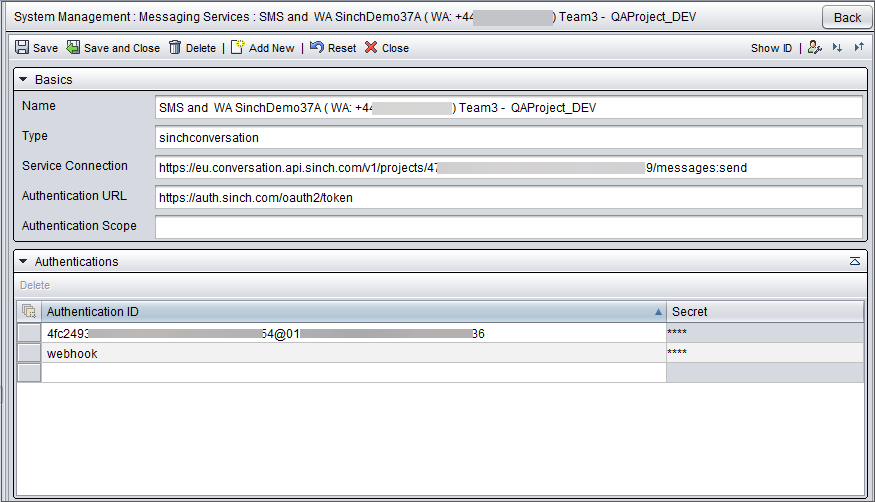
- Go to and create a chat queue.
The queue address in the Numbers/Addresses block is of format [app ID]@[subchannel].sinchconversation.com, for example:
- WhatsApp: 01E4556565565ERKYO@whatsapp.sinchconversation.com
- Sinch Chat: 01EB17K24DRDHH07FVSSG00WEN@sinchchat.sinchconversation.com
- Facebook Messenger: 01F49FCDPK4V1F1WJCE8DM1MBH@facebook.sinchconversation.com
- Viber Bot: 01F44FCDPK2V6F1WJCE5DM1MBH@viber-bot.sinchconversation.com
- Instagram: 01F39FCDPK7V8F1WJCE8DM1MBH@instagram.sinchconversation.com
- Viber: 01F29FCDPK2V6F1WJCE8DM1MBH@viber.sinchconversation.com
- Telegram: 01F39FCDPK2V5F1WJCE8DM1MBH@telegram.sinchconversation.com
- Line: 01F85FCDPK2V8F1WJCE8DM1MBH@line.sinchconversation.com
- Google RCS: 01F82FCDPK2V8F1WJCE8DM1MBH@rcs.sinchconversation.com
- SMS: 01ER4ABSP36WG80BMAR2CN1XEY@sms.sinchconversation.com
- MMS:01ER4ABSP63WG80BMAR2CN1XEY@mms.sinchconversation.com
- KakaoTalk:01ER4ABSP63WG80BMAR2CN1XEY@kakaotalk.sinchconversation.com
- WeChat: 01ER4ABSP63WG80BMAR2CN1XEY@wechat.sinchconversation.com
For US numbers you also need to enter the SMS sender ID.